
AI voiceover script: pronunciation and timing handoff template
Prepare an AI voiceover with separate spoken copy, pronunciation notes and picture cues. Includes a 51-word example and a transparent timing calculation.
Sources checked:
Prepared with AI assistance and source review on September 16, 2026. Examples are illustrative, not provider benchmark results.
On this page
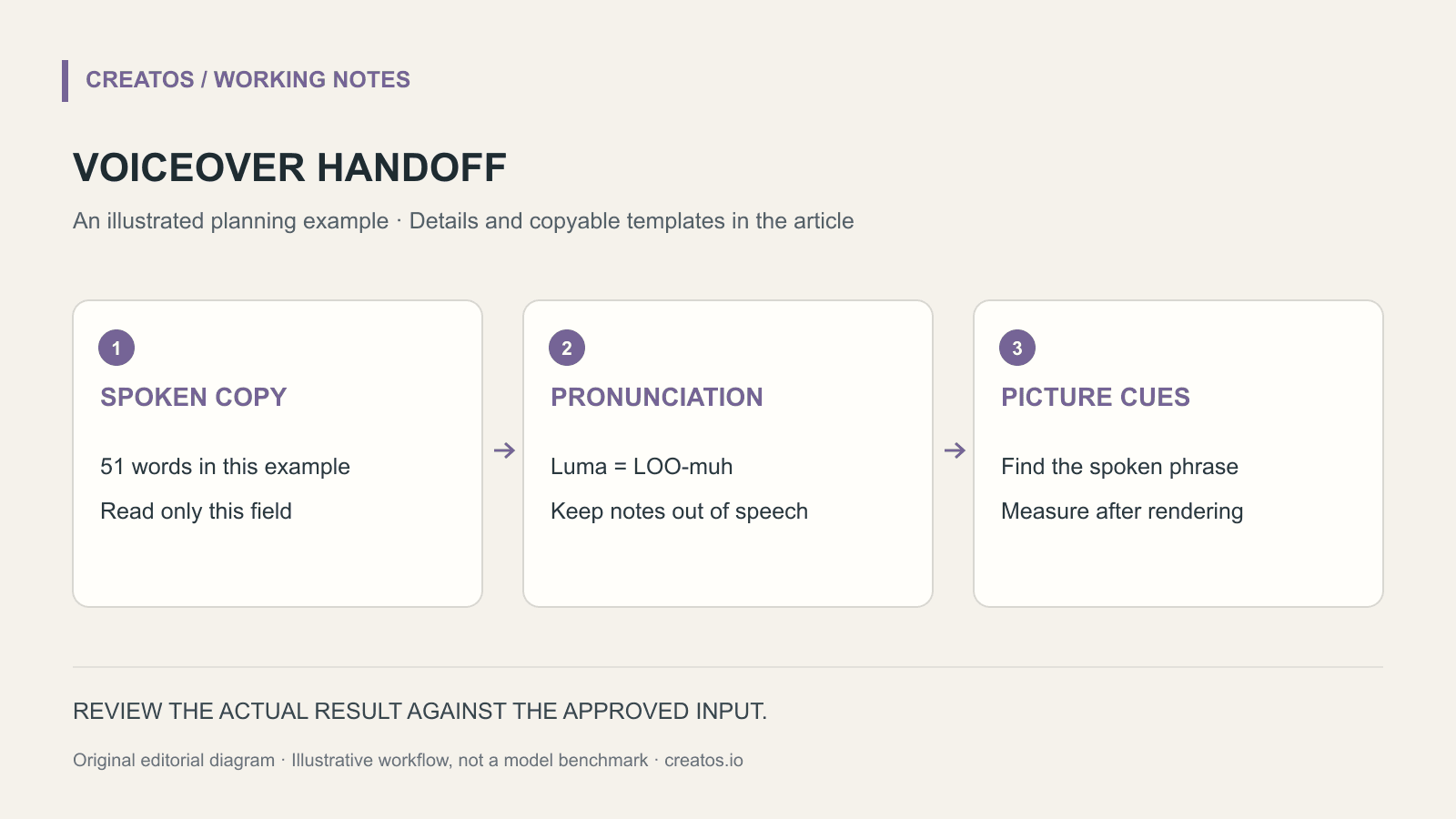
An AI voiceover brief needs three things: the words to say, the pronunciation of unusual terms and the places where the audio must meet the picture. Keep those separate. Otherwise a direction such as “pause here” can become part of the spoken script, or a corrected product name can change the timing of every later scene.
StepFun's StepAudio 3 Gen technical report describes a model that supports several kinds of audio generation, including speech and voice design. It is useful context for the expanding choice of audio tools, but a capability list does not tell you whether your brand name or final sentence will sound right. StepAudio 3 Gen technical report
This article provides a voiceover handoff sheet, with a fictional product example. It is not a listening test of StepAudio 3 or a claim that Creatos generates this audio.
Write a script you can actually record
Consider a short demonstration for a fictional note-taking app called Luma Note. The invented pronunciation is “LOO-muh note.” The video shows a saved idea, a linked image and an exported board.
Here is the spoken script:
A good idea rarely arrives with everything attached.
Save the note. Add the image that explains it.
Keep the source beside the draft, so you can find it again.
When the board is ready, export it for the next conversation.
That is Luma Note: a place to keep the work together.
The example contains 51 words if punctuation is ignored and “Luma Note” counts as two words. At an assumed 130 words per minute, the words alone take about 23.5 seconds: 51 divided by 130, multiplied by 60. That is a planning estimate, not an audio measurement. Pauses, emphasis and the selected voice will change it.
If you have only 20 seconds of picture, shorten the script before trying to force the voice faster. For example, remove the first sentence and begin at the action: “Save the note.” Do not promise a precise running time until you have rendered and listened to the audio.
Add a pronunciation sheet outside the spoken copy
| Term | Intended reading | Check in the rendered audio |
|---|---|---|
| Luma Note | LOO-muh note, invented brand pronunciation | Two words; no extra syllable |
| AI | The letters A and I | Does it become a single word? |
| v2 | “version two” in this example | Do not read “vee squared” |
| 1.5 GB | “one point five gigabytes” | Decimal and unit remain intact |
Only include terms used in the final script. The extra rows illustrate how to prepare a reusable sheet for later videos. A plain-language pronunciation note is a production instruction, not a promise that a particular model will obey it. Use a tool's documented pronunciation controls if available, and listen to the result.
Keep directions in a separate field:
Delivery: calm, conversational; no announcer-style finish.
Pronunciation: Luma = LOO-muh (fictional brand).
Read only the approved spoken-copy field.
Do not speak headings, timing notes or filename labels.
Return uncertainties before generating another take.
Tie the audio to visible actions
Make a cue sheet after the first render. Until then, label all timings “planned.” The editor needs to know which words must line up with a visible change, rather than receive an arbitrary instruction to fill exactly 30 seconds.
| Cue | Visible event | Timing status before the render |
|---|---|---|
| “Save the note” | Note appears on the board | Planned; align to the spoken phrase |
| “Add the image” | Reference image is added | Planned; allow the action to finish |
| “export it” | Export menu opens | Planned; keep the result visible |
After rendering, replace the planned cues with measured timecodes from the actual file. Keep the original audio untouched and save revisions with a take number. If only the product name is wrong, generate or record a replacement and check the surrounding transition; do not silently swap a full new take under an already edited video.
Listen once for meaning, once for the edit
The meaning pass checks every number, name, negation and missing word against the approved script. The edit pass checks breaths, clipped endings, unwanted silence and the relation to the picture. Listen to the exported video as well as the audio file; a correct voiceover can still be cut short on the timeline.
For a shared working sheet, put the spoken copy, pronunciation table and cue notes in separate Creatos text nodes. The flow-editor guide covers organizing a canvas and exporting a visual reference. Keep the rendered audio and final timing decisions in your audio or video editor.
Prepared on September 16, 2026. The script, invented brand and timing calculation are original examples; no provider-generated take was used to establish the estimates.
Sources
Continue reading
Browse all posts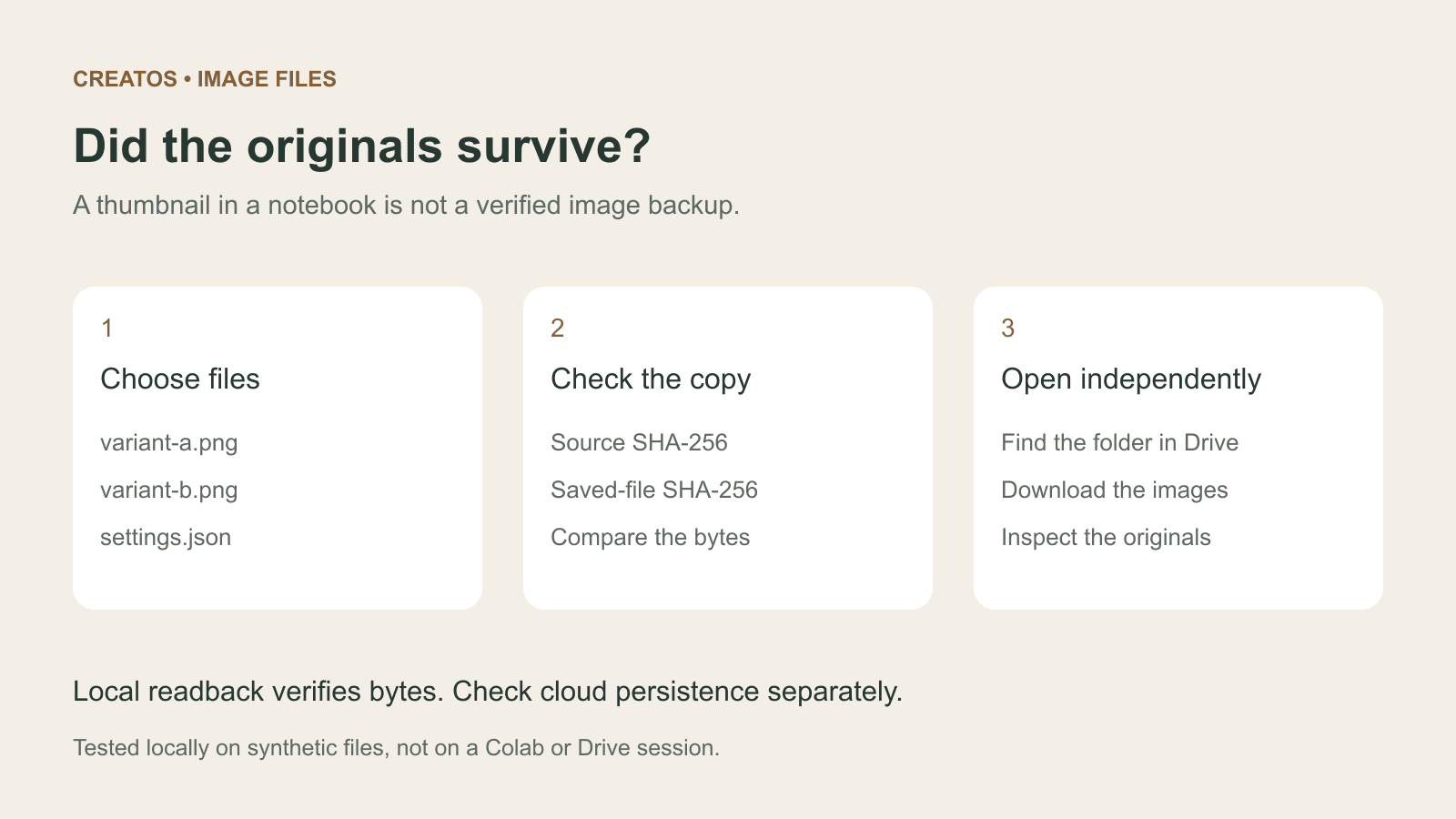
Save Colab images before a runtime reset: verify the copy
Keep generated PNGs and settings outside the Colab runtime. Use a locally tested copy-and-hash helper, then check the files independently in Drive.

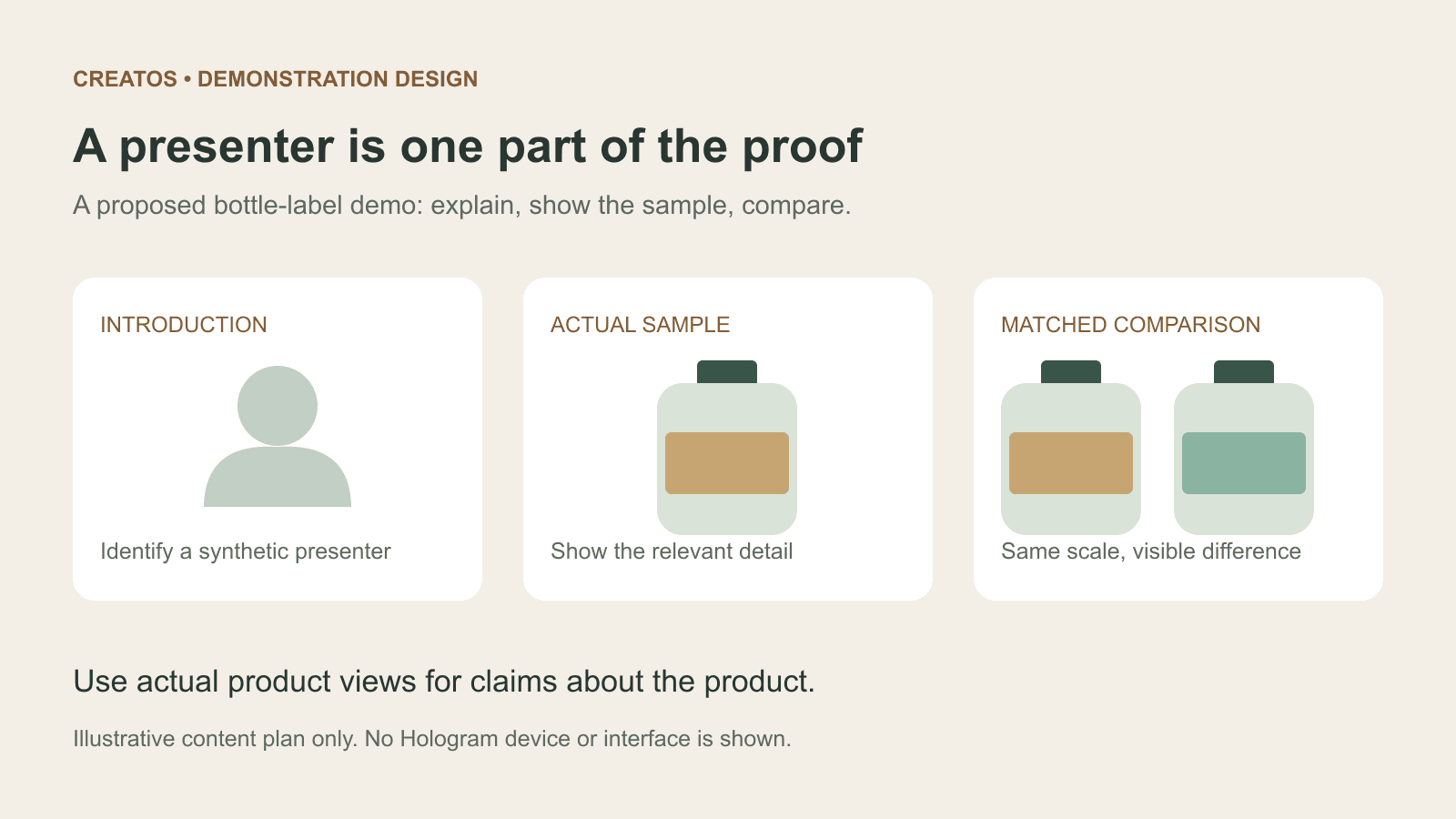
Meta Hologram vs a live camera in product demos
Separate an AI presenter from evidence of a product. A proposed 35-second label demo shows when to use actual photos, screen recordings and captions.
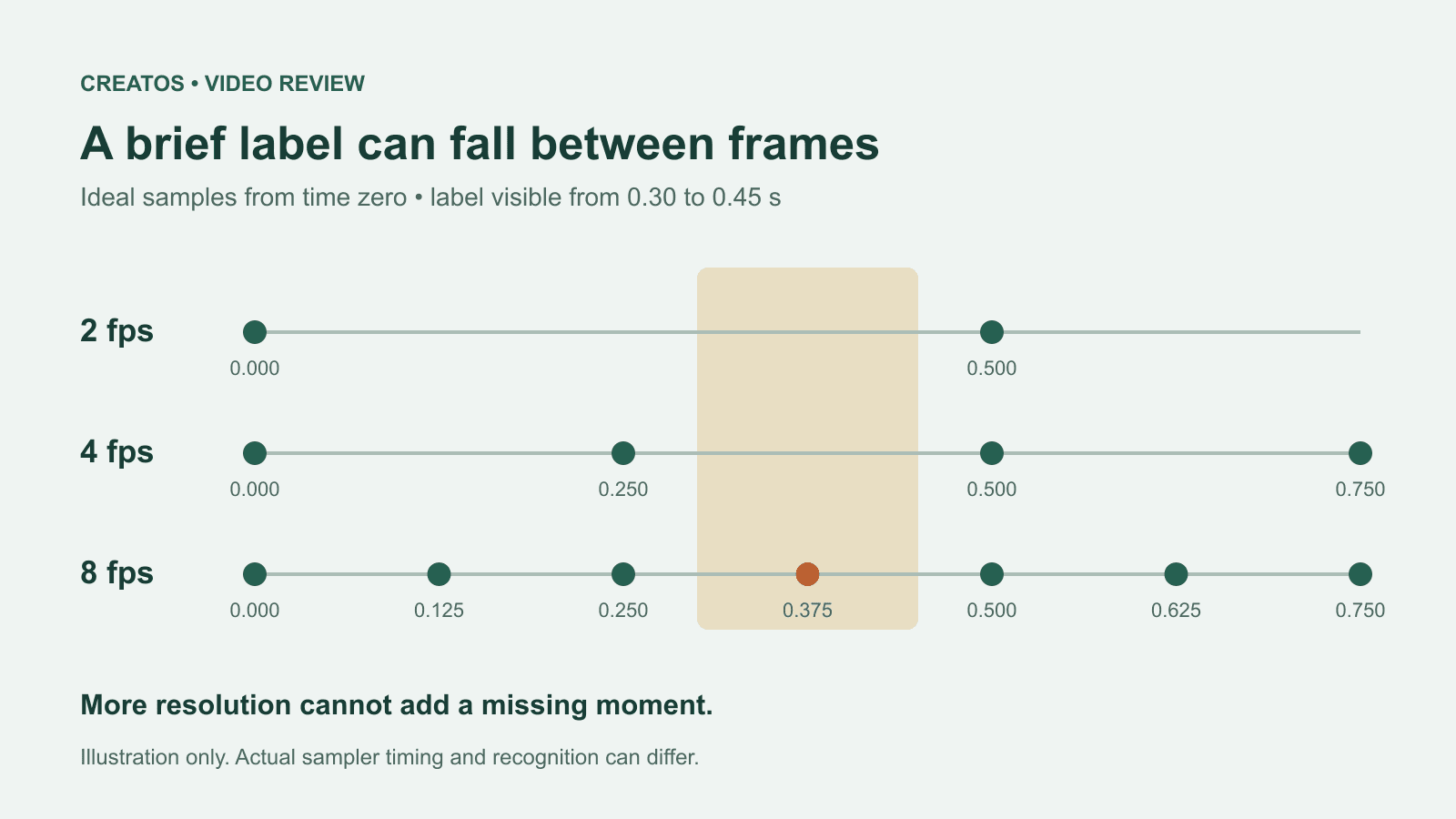
MiMo video review: why short details disappear
A worked sampling example shows why MiMo can miss a brief label, how fps differs from resolution, and what to check before approving a product video.