
Save Colab images before a runtime reset: verify the copy
Keep generated PNGs and settings outside the Colab runtime. Use a locally tested copy-and-hash helper, then check the files independently in Drive.
Sources checked:
Prepared with AI assistance. The Python helper was executed locally on synthetic files, including a corrupted-copy check. Colab, Drive synchronization and image generation were not tested.
On this page
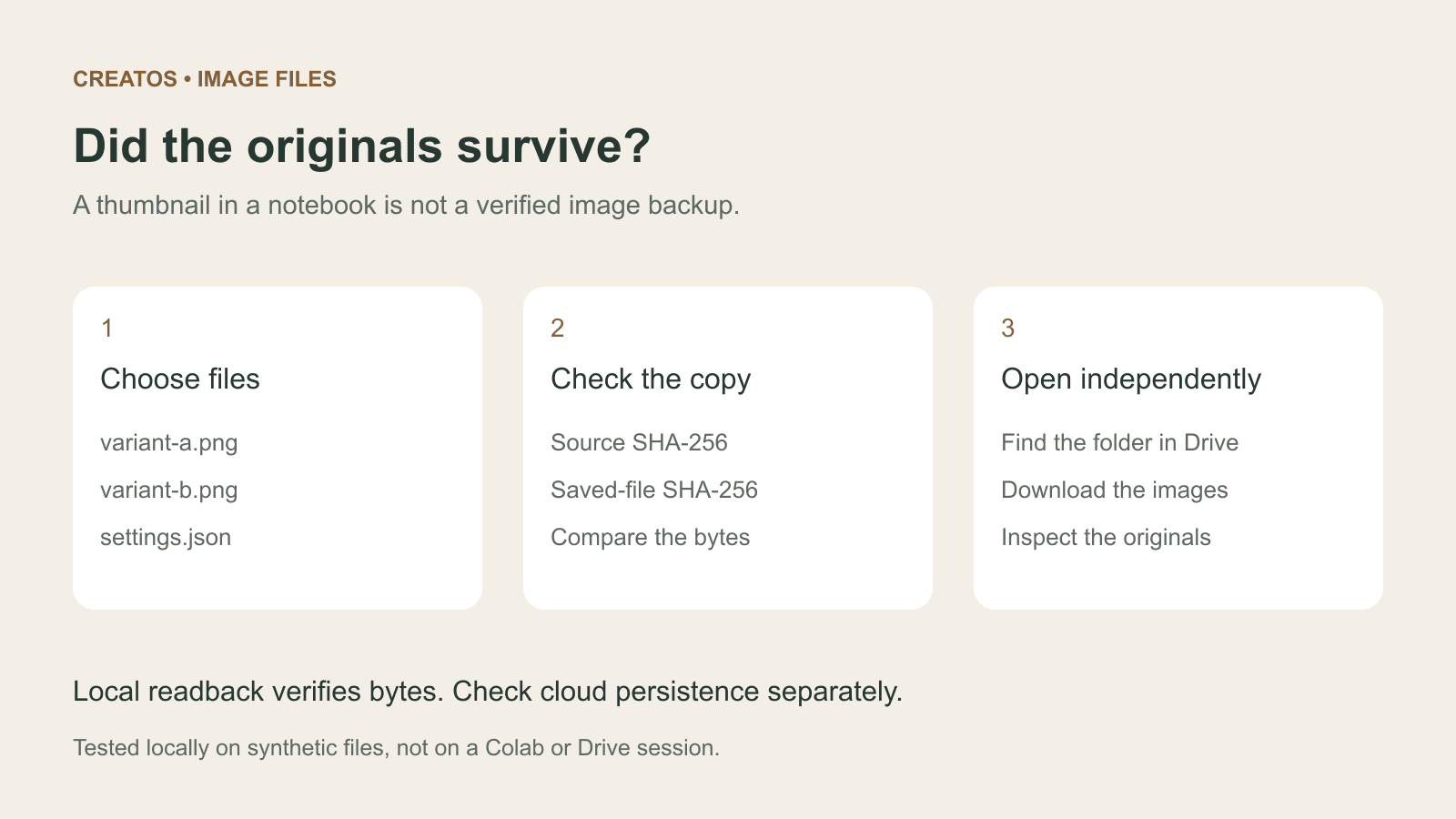
Save the generated image files outside the Colab runtime, then read the saved copies back. A notebook that still displays a thumbnail is not enough evidence that you have kept the original PNG and its settings.
Google AI Pro's Colab benefit includes 200 compute units for eligible members. The listed conditions include web access, age 18 or older, Google One family plan managers and exclusion of trial memberships. That benefit does not turn the runtime into permanent storage.
The Colab FAQ distinguishes saved notebooks from the virtual machine's custom files. It also says virtual machines are deleted after inactivity and have a maximum lifetime. A disconnected browser does not necessarily mean the files have already disappeared, but waiting for a disconnect before saving is a poor recovery plan.
Save a finished batch, not the whole runtime
In an older r/GoogleColab question, u/Chait_Project asked how to preserve work before a runtime stops and described problems with repeatedly replacing files in Drive. That is one user's experience, not evidence of a current general outage.
For an image comparison, choose the files you actually need: perhaps variant-a.png, variant-b.png and a settings.json containing their prompts and generation settings. Wait until the image-writing cell finishes. Do not include credentials, downloaded model weights or every temporary file just because they share a folder.
Give each saved batch a new folder. Keep the source files until you have checked the destination. This makes a partial copy easier to identify and avoids overwriting yesterday's accepted image.
Copy selected files and compare their bytes
The following Python uses only the standard library. It records SHA-256 hashes of the chosen source files, copies them into a unique folder, and checks the copies against that manifest. A hash match means the readback bytes match; it says nothing about whether an image is visually correct.
We ran this exact helper locally with two synthetic PNG files and a settings file. The intact copy passed. After we deliberately changed one copied image, verification raised an error. This was a local file-handling test, not a test of Colab or Google Drive synchronization.
from pathlib import Path
import hashlib
import json
import shutil
import uuid


def sha256(path):
    h = hashlib.sha256()
    with path.open("rb") as f:
        for block in iter(lambda: f.read(1024 * 1024), b""):
            h.update(block)
    return h.hexdigest()


def verify_saved(folder):
    folder = Path(folder)
    manifest = json.loads((folder / "manifest.json").read_text())
    for name, expected in manifest.items():
        if Path(name).name != name or name in {".", ".."}:
            raise ValueError("Manifest contains an invalid filename")
        if sha256(folder / name) != expected:
            raise ValueError("Saved bytes do not match: " + name)
    return len(manifest)


def save_selected(source, parent, names):
    source, parent = Path(source), Path(parent)
    if not parent.is_dir():
        raise ValueError("Choose an existing destination folder")
    if not names or len(names) != len(set(names)):
        raise ValueError("Choose a nonempty list of unique filenames")
    for name in names:
        if Path(name).name != name or name in {".", "..", "manifest.json"}:
            raise ValueError("Use plain filenames only")
        if (source / name).is_symlink() or not (source / name).is_file():
            raise ValueError("Missing or linked source file: " + name)
    expected = {name: sha256(source / name) for name in names}
    saved = parent / ("image-batch-" + uuid.uuid4().hex)
    saved.mkdir()
    for name in names:
        shutil.copyfile(source / name, saved / name)
    (saved / "manifest.json").write_text(json.dumps(expected, indent=2))
    count = verify_saved(saved)
    print(f"Readback matched: {count} files in {saved}")
    return saved
In a trusted Colab notebook, first mount your intended Drive account using Colab's normal interface and choose an existing destination folder. Google notes that mounting Drive grants notebook code access to its files, so check the notebook before granting that access. Colab's Drive explanation
Adapt this call to your actual filenames and folders:
saved = save_selected(
    "/content/my-image-outputs",
    "/content/drive/MyDrive/CreativeExports",
    ["variant-a.png", "variant-b.png", "settings.json"],
)
Create CreativeExports in Drive first. The helper requires the destination to exist, but it cannot prove that a folder is a working cloud mount. An ordinary local folder with the same name would still be temporary. Confirm the account and mount yourself.
If the cell fails, treat that batch as incomplete. It may leave a partial destination folder; it does not delete the originals or claim success after an error. Correct the path, storage or I/O problem before making another copy.
Check the saved files outside the runtime
After a matching readback, open Google Drive in its web interface and find the new batch folder. Download and open the images you plan to deliver. Check their dimensions and visible content, then keep a copy on your own computer if losing them would mean repeating substantial work.
This second check matters because reading through the same mounted filesystem is not independent proof that the cloud copy will survive a runtime reset. Do not use the helper's success message as permission to delete the only known good originals.
Once you have the files, compare the images using their saved filenames. In Creatos, image and text nodes can show the alternatives beside notes such as "variant B: keep the lighting; revise the lettering." That keeps the visual choice tied to the file you can actually retrieve. Creatos is the comparison workspace in this example, not the backup mechanism.
Sources
Continue reading
Browse all posts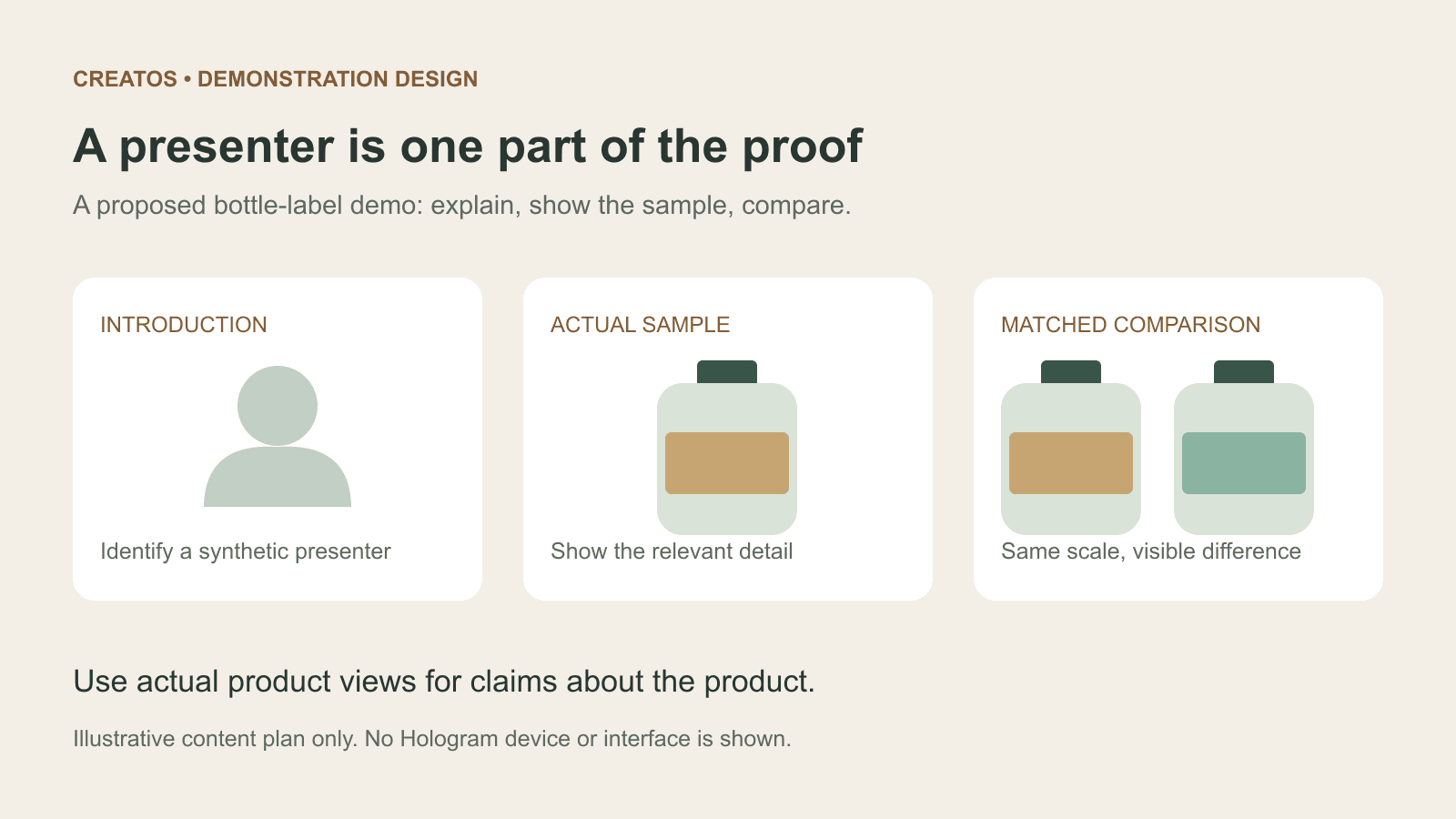
Meta Hologram vs a live camera in product demos
Separate an AI presenter from evidence of a product. A proposed 35-second label demo shows when to use actual photos, screen recordings and captions.
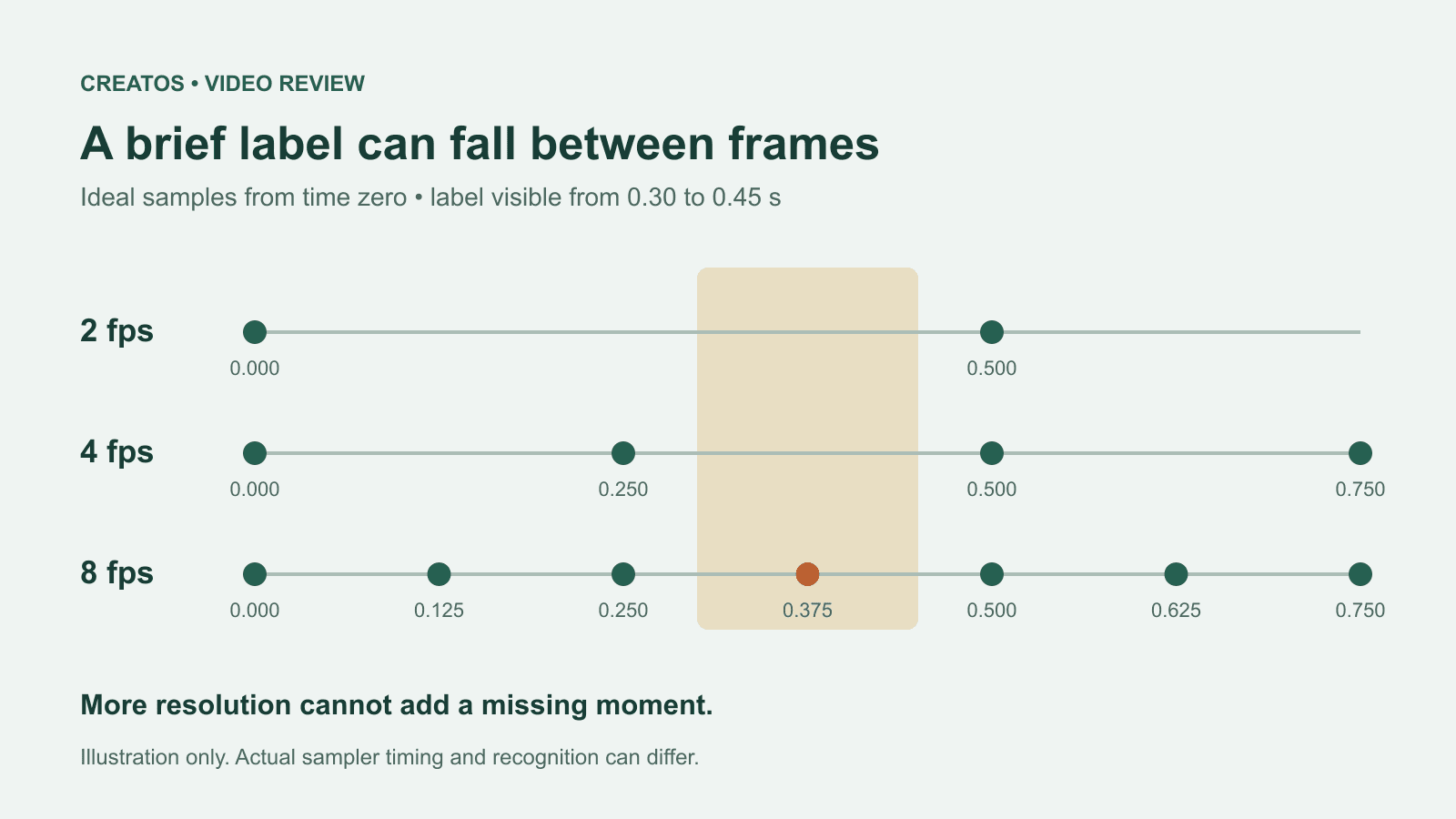
MiMo video review: why short details disappear
A worked sampling example shows why MiMo can miss a brief label, how fps differs from resolution, and what to check before approving a product video.
Build a useful Claude brand-review skill before packaging a plugin
A proposed four-case test for a Claude brand-review skill: correct artwork, wrong wording, missing references and optional style preferences.