
GitHub Copilot canvas: plan an image review board
A proposed Copilot canvas brief for image reviews: bind approval to a file revision, separate recommendations, and check stale previews and saved decisions.
Sources checked:
Prepared with AI assistance from the cited sources. The cup project, diagram and build brief are illustrative. We have not built or tested this canvas in Copilot.
On this page
A useful GitHub Copilot canvas for reviewing images needs to identify the exact file being approved, record who can change its status, and make a revised file return to review. A card that just says "approved" loses its meaning when someone replaces the image underneath it.
GitHub's September 25 tutorial explains how to describe a custom interface with /create-canvas. Its canvas can share state between a person and an agent. For visual work, that raises a question: what should the board remember? Kayla Cinnamon's tutorial covers creation; the example below designs a small image approval workflow around it.
This is a proposed specification based on documentation and a published practitioner example. We have not built or tested this board in the Copilot app.
Start with the decision the board must preserve
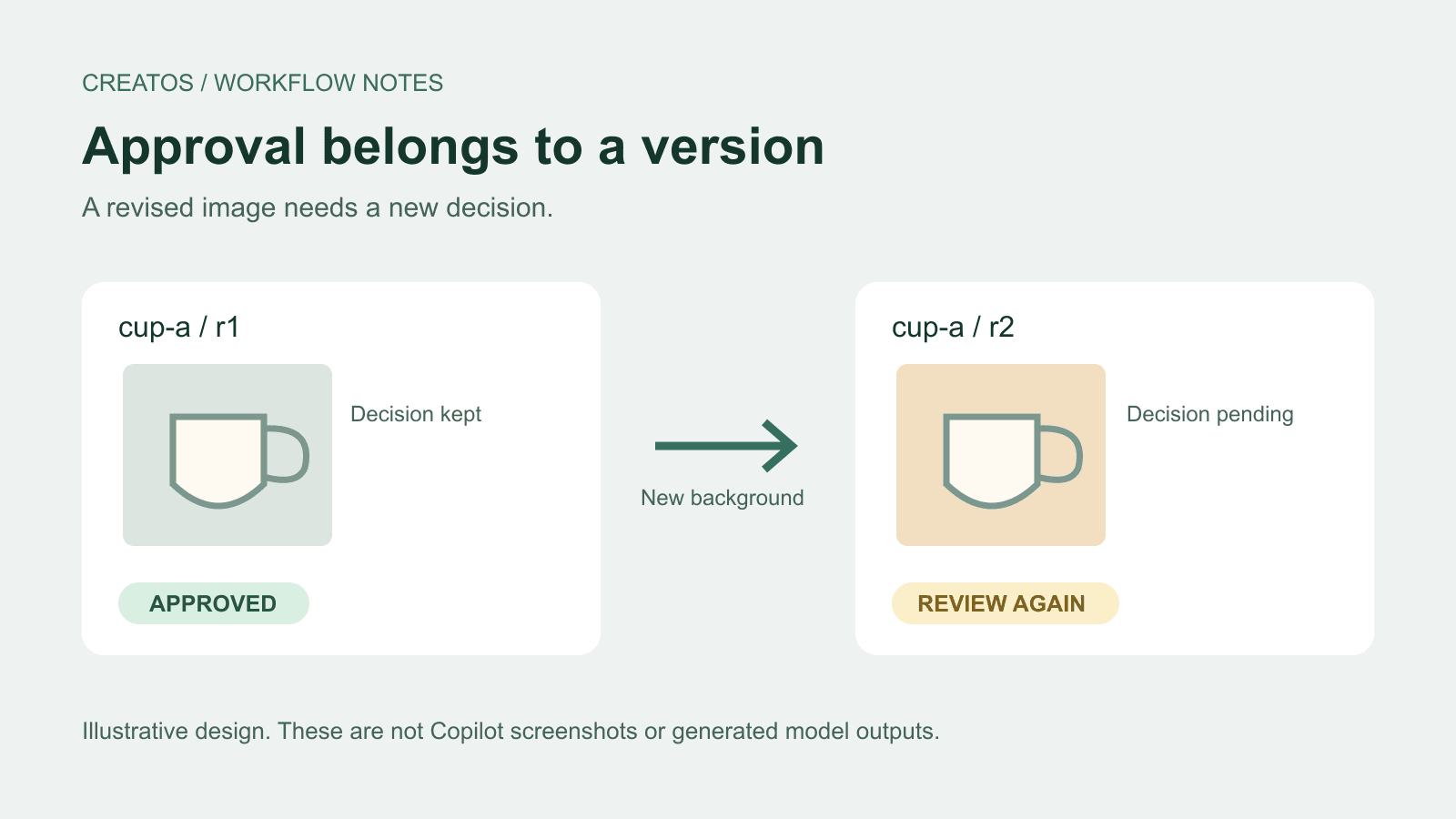
Imagine a designer choosing a hero image for a fictional ceramics shop. There are two candidates: cup-a-r1.png and cup-b-r1.png. The designer approves A, then asks for a warmer background. The resulting cup-a-r2.png is a new candidate for approval, even if the change seems minor.
The board should retain A-r1's approval as a historical decision and show A-r2 as awaiting review. A person returning tomorrow could otherwise assume the revised image had already been checked.
Use a record like this for each version:
| Field | Example | Why it belongs here |
|---|---|---|
| Candidate and revision | cup-a, r2 | Keep the concept distinct from its successive files |
| File reference | cup-a-r2.png | Tie comments to a specific image |
| Requested change | Warmer background; keep cup shape and handle | State what the revision was meant to do |
| Agent recommendation | Ready for review; handle needs checking | Separate a suggestion from a decision |
| Human decision | Pending | Prevent a new revision inheriting approval |
| Decision note | Empty until reviewed | Preserve the reason alongside the status |
This is an editorial design choice, not a built-in Copilot approval system. File names also need discipline: if someone overwrites cup-a-r2.png, the name alone cannot prove which pixels were approved. Preserve versions as separate files; a production implementation could additionally bind decisions to file hashes.
Give the agent a complete build brief
GitHub documents custom capabilities that people and agents can use to update the same canvas. It also distinguishes a project extension from a personal extension. Choose the scope that matches who should reuse the board. GitHub canvas documentation
This suggested prompt specifies behavior to build and check. Its output still needs inspection.
/create-canvas Build a small image review board for a design project.

Each record represents one candidate revision, with candidate ID,
revision ID, exact file reference, preview, requested change,
agent recommendation, human decision, and decision note.

Let the agent add candidate revisions and write recommendations.
Do not give the agent an action that marks a revision approved.
Let the reviewer mark a specific revision approved or request changes.

When a revision is added, set its human decision to pending.
Keep earlier revisions and their decisions visible in history.
Reject attempts to overwrite an existing candidate/revision pair.
Show a clear missing-file state instead of reusing another preview.

After every candidate change, update the board before continuing.
Keep text readable and controls usable at the app's narrow panel width.
Persist the records and restore them when the board is reopened.

Use a personal extension for this first prototype.
Create two clearly labeled fictional records for checking behavior.
Do not publish files or send images to external services.
A prompt restriction is not an access-control guarantee. Inspect the generated actions and try the cases below before treating the board as an approval record. For workflows that require enforced permissions, the underlying implementation needs to enforce them too.
Check what happens after the attractive first screen
In her September 17 account, Ella Hathaway describes a review canvas that initially had the right sections but still needed instructions telling the agent when to update them. She also found clipped text when the interface ran at its actual side-panel width. Her example concerns a developer workflow. It points to two things to check here: whether the agent updates the board and whether the panel stays readable. Hathaway's firsthand account
For the fictional cup project, these checks would expose different failures:
- Approve A-r1, then add A-r2. A-r1 must retain its recorded decision; A-r2 must show pending. If both show approved, the board is attaching approval to the concept instead of the file version.
- Ask the agent to recommend B-r1. Its recommendation should change while the human decision stays pending. Inspect whether any agent-callable action can bypass that separation.
- Close and reopen the board. The same file references, revisions and decisions should return. An attractive screenshot does not establish persistence.
- Remove access to one test file. Its card should show the missing-file state, not a stale preview presented as current.
- Narrow the panel and enter a long revision note. Read the full note and use the decision controls without clipped labels.
These are acceptance cases for a prototype, not results from an experiment we ran.
When a visual comparison canvas is enough
A custom Copilot interface makes sense when you need the agent to keep structured records current and people to act on them. If the immediate job is choosing between a few images in a meeting, building and maintaining that interface may be more work than the review itself.
For that smaller task, Creatos supports importing images, adding text nodes, grouping material with sticky notes and exporting a canvas as PNG. You can place A-r1 and A-r2 beside the requested change, then share the comparison. The Creatos flow editor guide covers those operations. This is a visual review layout; it does not provide the custom board's proposed permissions or revision rules.
Keep the approved file identifiable after the next edit arrives.
Sources
- GitHub Copilot app: custom workflows with canvases · Kayla Cinnamon ·
- Working with canvas extensions
- Why (and How) I Build Canvases for the GitHub Copilot App · Ella Hathaway ·
- Creatos Flow Editor
Continue reading
Browse all posts
Save Colab images before a runtime reset: verify the copy
Keep generated PNGs and settings outside the Colab runtime. Use a locally tested copy-and-hash helper, then check the files independently in Drive.

Meta Hologram vs a live camera in product demos
Separate an AI presenter from evidence of a product. A proposed 35-second label demo shows when to use actual photos, screen recordings and captions.
MiMo video review: why short details disappear
A worked sampling example shows why MiMo can miss a brief label, how fps differs from resolution, and what to check before approving a product video.