
Holo4 click coordinates: fix crop and Retina offsets
Map Holo4 normalized coordinates from a cropped screenshot back to a design app. Includes a worked Retina example and locally tested Python conversion.
Sources checked:
Prepared with AI assistance from linked sources. The Python coordinate adapter was tested locally. No Holo4 inference or live desktop click was performed.
On this page
Holo4 returns a point relative to the screenshot you send it. If that image is a cropped, resized portion of a design app, multiplying the point by the full screen's dimensions will put the click in the wrong place. Restore the crop offset first, then convert screenshot pixels into the units your click tool expects.
H Company's Holo4 release prompted this example. We tested the coordinate arithmetic locally; we did not run Holo4 or click a live application.
Track the screenshot and click surface
The official element-localization guide defines integer coordinates from 0 to 1000, normalized to the exact image sent. For example, x = 750 is three-quarters of that image's width. The guide also warns about crop, resize and Retina unit mismatches.
A cropped screenshot introduces three spaces:
| Space | What the numbers describe |
|---|---|
| Submitted image | The crop that Holo4 actually sees, possibly resized |
| Full screenshot | Where that crop came from, including its left and top offsets |
| Click surface | The window or desktop coordinates expected by your action tool |
A plain resize preserves a point's fraction of the image. Added padding does not. The calculation below assumes a rectangular crop followed, optionally, by a plain resize with no padding or rotation. It also assumes that the full screenshot and the click surface cover exactly the same window.
Worked example: a control in an image editor
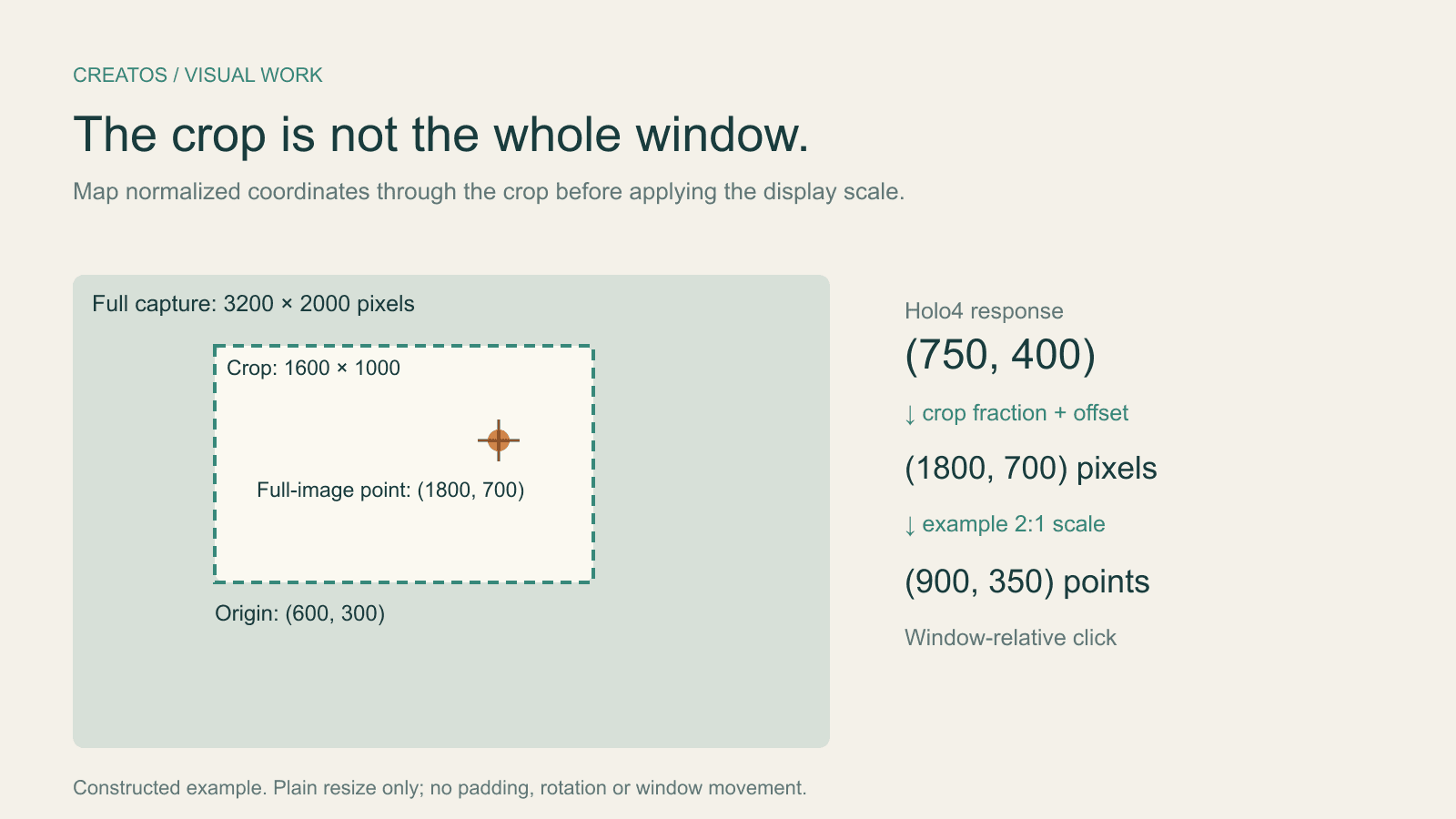
Suppose an editor window is captured at 3200 × 2000 image pixels, while the click tool addresses that same window at 1600 × 1000 points. That 2:1 ratio belongs to this example. Measure the actual capture and action surface instead of assuming every Mac uses it.
You crop a 1600 × 1000 region starting at (600, 300) in the full screenshot, then resize it to 800 × 500 for the model. Assume the response is (750, 400) on the normalized scale.
| Conversion | Result |
|---|---|
| Normalized point to submitted image | (0.75 × 800, 0.40 × 500) = (600, 200) |
| Undo the plain resize | (1200, 400) in the original crop |
| Add the crop origin | (1800, 700) in the full screenshot |
| Convert image pixels to click-tool points | (900, 350) in the window |
Sending (600, 200) directly to the click tool loses both the crop offset and the distinction between image pixels and window points. Multiplying the normalized values by the full window instead gives (1200, 400), which is also wrong.
For this transform, the submitted image's dimensions cancel out:
window_x = (crop_left + x / 1000 × crop_width) × action_width / full_width
window_y = (crop_top  + y / 1000 × crop_height) × action_height / full_height
The crop_* and full_* values above are measured in original screenshot pixels. The action_* values use the click tool's units. Record them when taking the screenshot, before the window moves or its scale changes.
A small adapter, with edge handling
This Python function accepts integer dimensions and a normalized point. It keeps an endpoint of 1000 inside the crop, rejects invalid coordinates and returns window-relative integer coordinates. It does not issue a click.
from math import floor


def map_point(norm, full_px, crop_px, action_size):
    """Crop, optional plain resize, then normalized Holo output.

    action_size covers the same window as full_px. No padding or rotation.
    Return integer coordinates relative to that window, not the desktop.
    """
    x, y = norm
    fw, fh = full_px
    left, top, cw, ch = crop_px
    aw, ah = action_size
    if any(type(v) is not int for v in (*norm, *full_px, *crop_px, *action_size)):
        raise ValueError('Use integer coordinates and dimensions')
    if not (0 <= x <= 1000 and 0 <= y <= 1000):
        raise ValueError('Normalized coordinates must be in [0, 1000]')
    if min(fw, fh, cw, ch, aw, ah) <= 0:
        raise ValueError('Dimensions must be positive')
    if left < 0 or top < 0 or left + cw > fw or top + ch > fh:
        raise ValueError('Crop must fit inside the full screenshot')
    # A value of 1000 denotes an edge; keep the result inside the crop.
    px = left + min(x * cw / 1000, cw - 1)
    py = top + min(y * ch / 1000, ch - 1)
    return (min(aw - 1, floor(px * aw / fw)),
            min(ah - 1, floor(py * ah / fh)))

point = map_point(
    (750, 400),
    full_px=(3200, 2000),
    crop_px=(600, 300, 1600, 1000),
    action_size=(1600, 1000),
)
assert point == (900, 350)
We ran nine local tests covering the worked example, crop corners, full-image edges and center, equal units, unequal axis ratios, invalid normalized values and invalid crop geometry. All nine passed. The tests cover the stated arithmetic. Holo4 locating the right control remains untested here.
For the same crop, (0, 0) maps to (300, 150) in window points. (1000, 1000) maps to (1099, 649), staying inside the last screenshot pixels of that crop. Flooring can shift a result by less than one click-tool unit; a tiny target may need more precise handling by its actual tool.
Check the point before acting on it
Draw the mapped point on the full screenshot first. The expected mark in our example is at (1800, 700) image pixels. If it lands in the wrong part of the editor, inspect the crop metadata and units before changing the model prompt.
If the mark lands on the intended location but the application responds elsewhere, inspect the click tool's coordinate contract. Some tools use desktop coordinates, others window-relative or browser-viewport coordinates. A desktop tool also needs the window's current desktop origin in matching units. Browser chrome, multiple monitors and display scaling require the actual capture-to-action transform; this adapter does not infer it.
If you added letterboxing, undo the padding before applying the formula. If the window moved, content scrolled or a menu changed after the screenshot, take a fresh capture. A numerically correct point can still refer to a stale interface.
For a design-work review, keep the intended-control screenshot beside the screenshot marked with the calculated point. Creatos image and text nodes can show that pair with the crop origin and dimensions, making a missed target easier to discuss. Coordinate conversion and clicking remain in your automation code; this is not a claim that Creatos integrates Holo4.
Sources
Continue reading
Browse all posts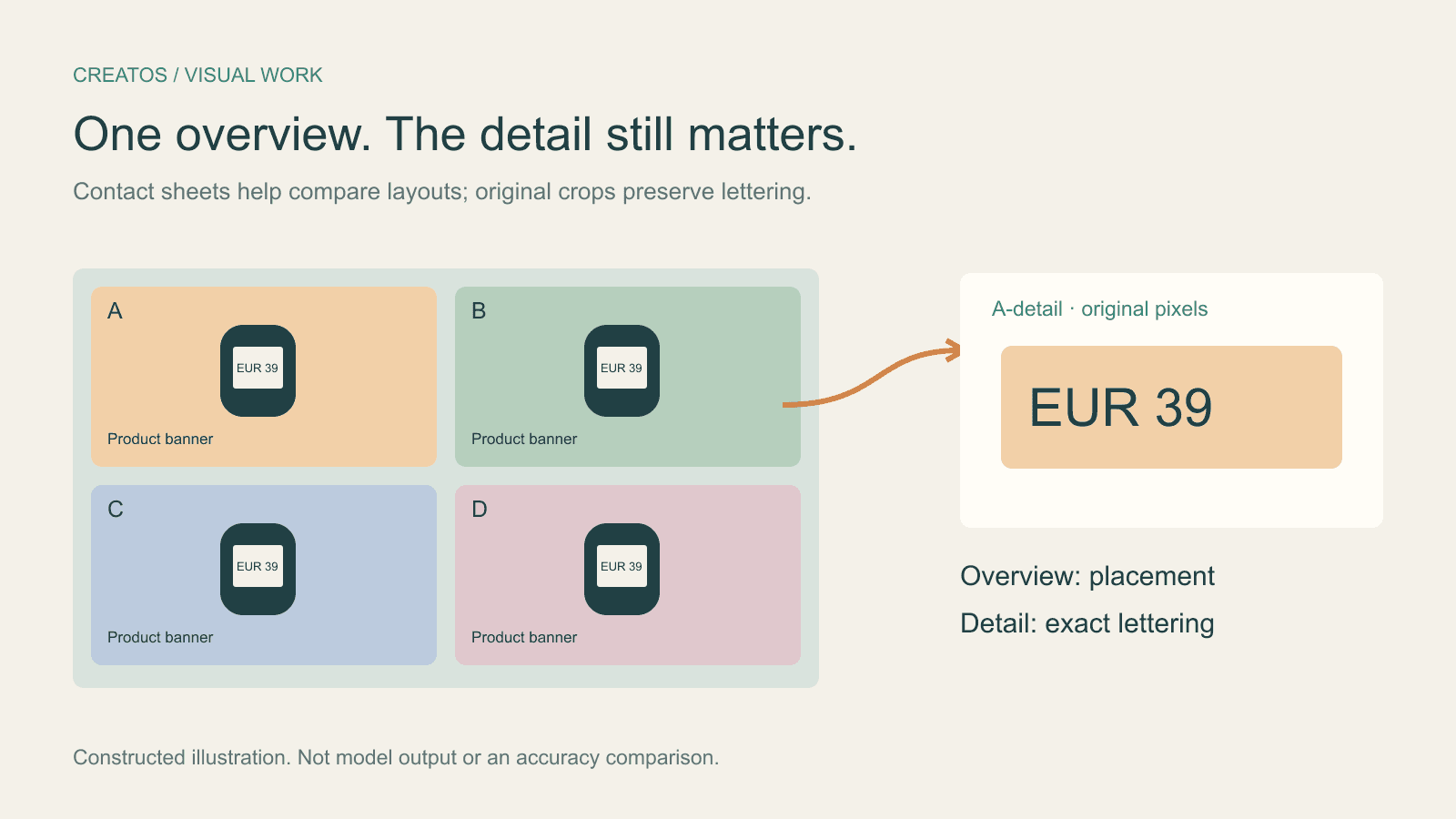
Claude image review: keep small text readable
Compare a contact sheet, separate images and detail crops using Claude image limits, with reproducible pixel and token calculations for four banner variants.

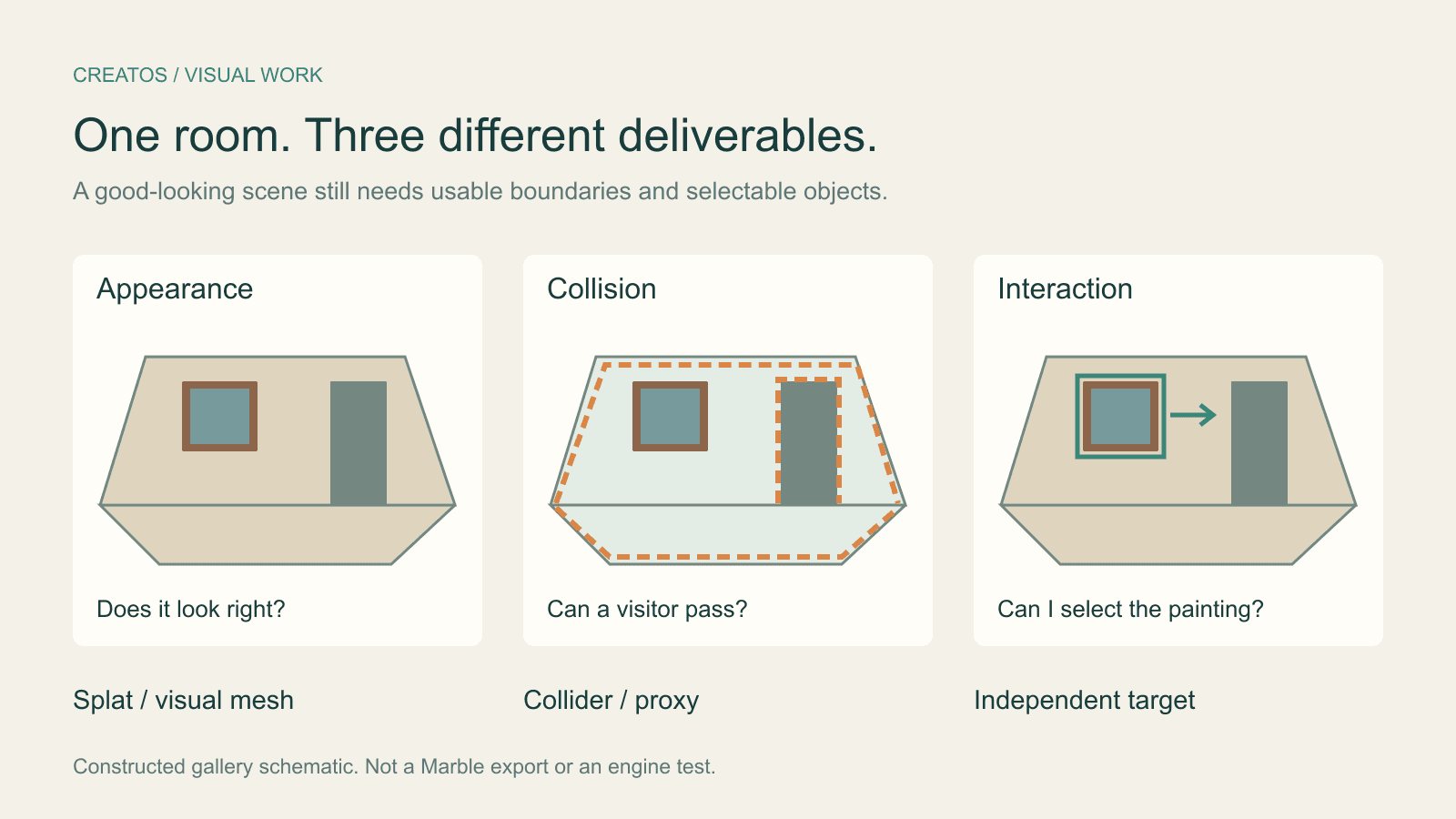
Marble exports: splat, collider or textured mesh?
Choose the right Marble asset for appearance, collisions or polygon editing. A gallery example separates visual approval from walking and object interaction.
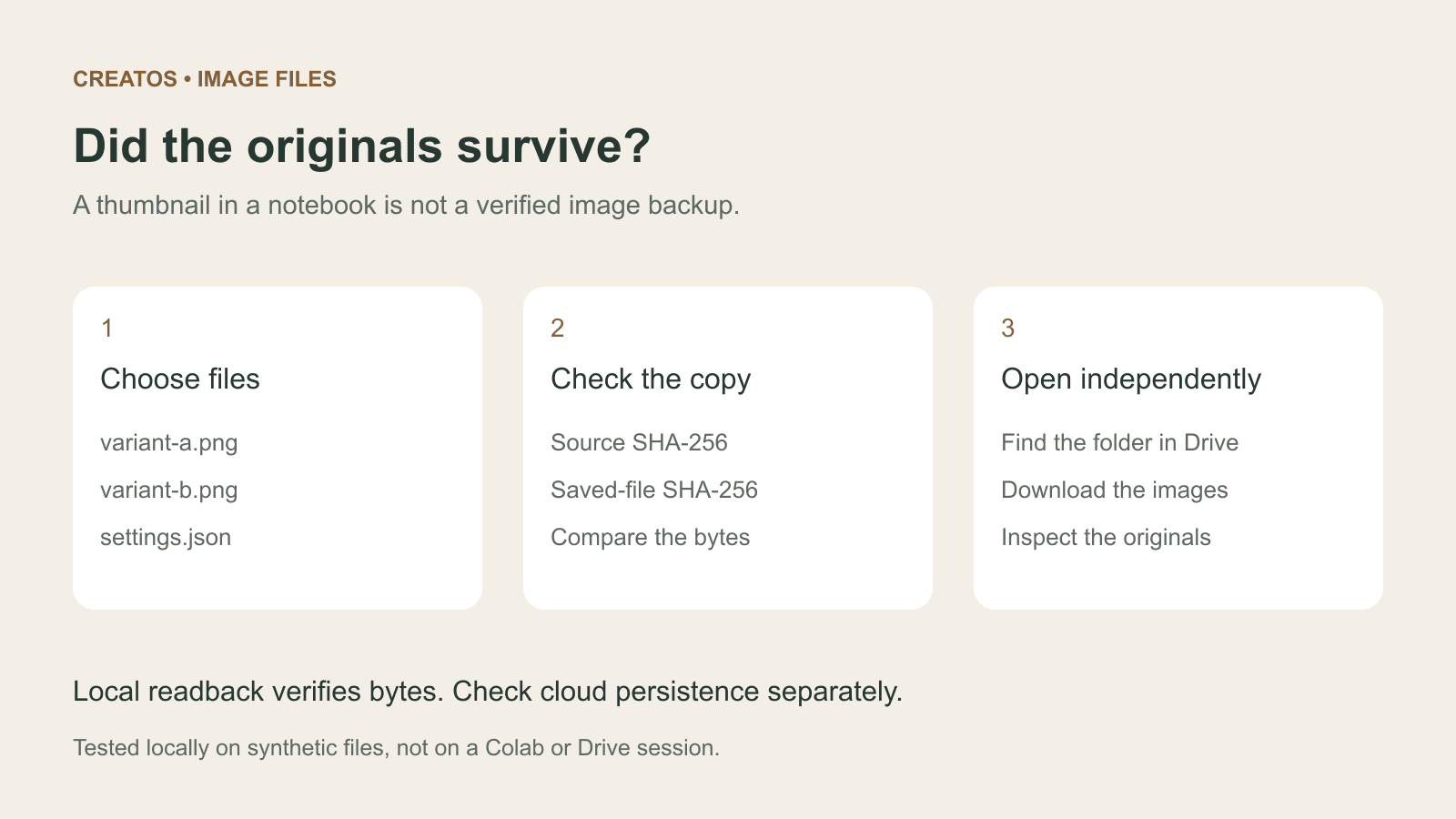
Save Colab images before a runtime reset: verify the copy
Keep generated PNGs and settings outside the Colab runtime. Use a locally tested copy-and-hash helper, then check the files independently in Drive.