
Claude image review: keep small text readable
Compare a contact sheet, separate images and detail crops using Claude image limits, with reproducible pixel and token calculations for four banner variants.
Sources checked:
Prepared with AI assistance and checked against linked documentation. Pixel and token figures were calculated locally; this is not an OCR or Sonnet 5.5 performance test.
On this page
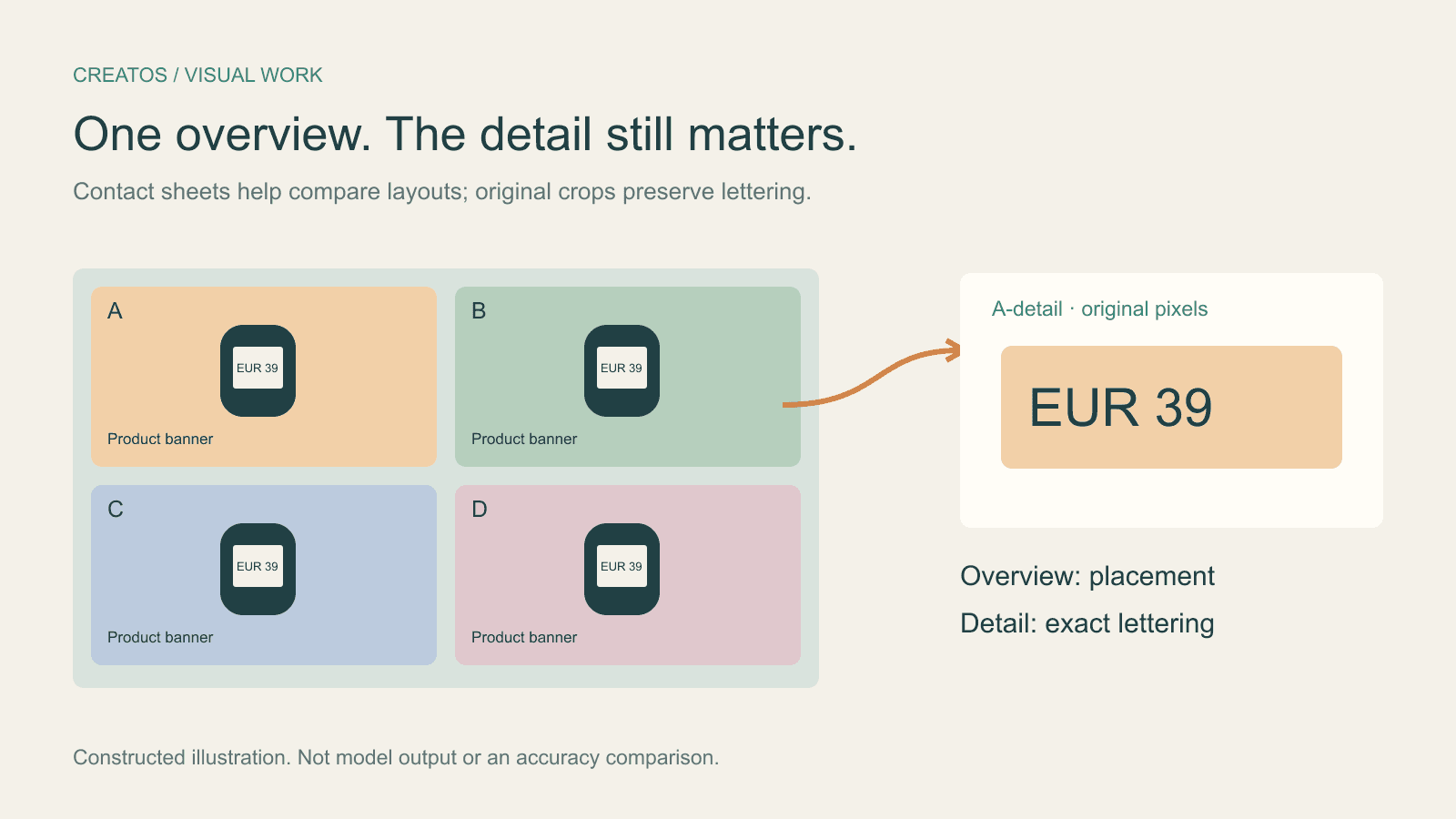
For comparing composition, one contact sheet is convenient. For checking a small price, date or product name, send separate full-size images or add clearly labeled detail crops. Packing several designs into one image can shrink the very lettering you want Claude to read.
Claude Sonnet 5.5 launched on September 28, with image understanding among Anthropic's reported improvements. Small lettering still needs readable input pixels. This guide works through a four-design example using the current Claude image limits. It is a calculation and a proposed review method; we have not run an OCR comparison on Sonnet 5.5.
What a four-image sheet does to the letters
Imagine four product-banner variants, each 1920 × 1080 pixels. A line of small lettering is 18 pixels tall in each original. A two-by-two sheet with no borders measures 3840 × 2160.
Anthropic's vision documentation puts Claude 4.7 and later models in the high-resolution tier: a maximum long edge of 2576 pixels and a ceiling of 4784 visual tokens. Oversized ordinary image inputs are downscaled. Each 28 × 28 patch counts as one visual token, including partial patches at the edges.
Applying those limits gives this comparison:
| Input arrangement | Size processed per image | Size of each banner within that input | Visual tokens |
|---|---|---|---|
| One two-by-two sheet | 2576 × 1449 | About 1288 × 724.5 | 4784 total |
| Four separate originals | 1920 × 1080 each | 1920 × 1080 | 2691 each; 10,764 total |
| One 640 × 360 crop per banner | 640 × 360 each | Only the selected detail | 299 each; 1196 for four |
The sheet scales linear dimensions by 2576 / 3840, about 0.671. An 18-pixel letter becomes about 12.1 pixels tall. The half-pixel tile height comes from dividing the full image into two rows. The processed image has integer dimensions; a tile boundary can fall between pixel rows.
You can reproduce the token arithmetic:
Sheet:        ceil(2576 / 28) × ceil(1449 / 28) = 92 × 52 = 4784
One original: ceil(1920 / 28) × ceil(1080 / 28) = 69 × 39 = 2691
One crop:     ceil(640 / 28)  × ceil(360 / 28)  = 23 × 13 = 299
We checked these calculations locally against the limits. The documented resize rule considers both the edge and patch ceilings, then pads the bottom and right edges. These figures cover visual input tokens, not the text prompt, reasoning, reply or entire bill.
Twelve-pixel lettering is not a universal failure threshold. Contrast, font shape and compression matter. This calculation describes how much detail remains. Recognition accuracy still needs a model test.
Keep the overview and add the disputed detail
For the four banners, an overview plus four 640 × 360 crops uses 5980 visual tokens in this example: 4784 + 4 × 299. It keeps the shared layout visible while preserving the original pixels around each label. The crop-only total in the table excludes the overview and therefore supplies less context.
Make the crops from the original files, before resizing the sheet. Keep enough surrounding design to identify the label. If a 640 × 360 box cuts through the price or omits its currency, use a larger crop and recalculate; that size is an example, not a prescribed setting. Enlarging a crop taken from an already degraded sheet cannot restore lost detail.
Label the inputs consistently:
Overview: A top left, B top right, C bottom left, D bottom right.
A-detail: price area from banner-A-v3.png, original pixels.
B-detail: price area from banner-B-v2.png, original pixels.
C-detail: price area from banner-C-v4.png, original pixels.
D-detail: price area from banner-D-v2.png, original pixels.
Then ask for a narrow review:
Use the overview for placement and the corresponding detail crop for lettering. Transcribe the price in each version, including currency and punctuation. Mark uncertain characters as unreadable. After transcribing, compare each price with the approved text: EUR 39. Do not infer a missing character from that expected value.
This is original, untested prompt wording. Transcribing before comparing makes the requested evidence explicit; it cannot guarantee that the model avoids guessing. Check the actual pixels yourself before approving a price or date.
Match the remedy to the visible problem
If Claude confuses A with B, fix the labels and image order. If it identifies the right region but cannot read it, inspect the exact crop you submitted. If the original is blurry, return to a sharper source or the editable design. Repeating the same request with more reasoning does not supply pixels missing from the input.
Anthropic also warns that small text and repeated lossy compression can harm image interpretation. Its image guidance recommends preserving useful context when cropping. Image quality guidance
For a design review meeting, place each original banner beside its detail crop and the returned transcription. Creatos image and text nodes support this visible comparison. Give each pair the same version name so the group can check a disputed digit against the correct file. Prepare crops in your image editor; this workflow does not imply that Creatos runs Sonnet 5.5 or performs OCR.
Once the lettering is readable, the separate image-edit review guide helps check whether a revision changed details that were meant to stay fixed.
Sources
Continue reading
Browse all posts
Holo4 click coordinates: fix crop and Retina offsets
Map Holo4 normalized coordinates from a cropped screenshot back to a design app. Includes a worked Retina example and locally tested Python conversion.

Marble exports: splat, collider or textured mesh?
Choose the right Marble asset for appearance, collisions or polygon editing. A gallery example separates visual approval from walking and object interaction.
Save Colab images before a runtime reset: verify the copy
Keep generated PNGs and settings outside the Colab runtime. Use a locally tested copy-and-hash helper, then check the files independently in Drive.