
What is an infinite canvas? A file and handoff checklist
Choose an infinite canvas by checking file imports, editable projects and export limits. Includes a three-file evaluation checklist and a handoff folder template.
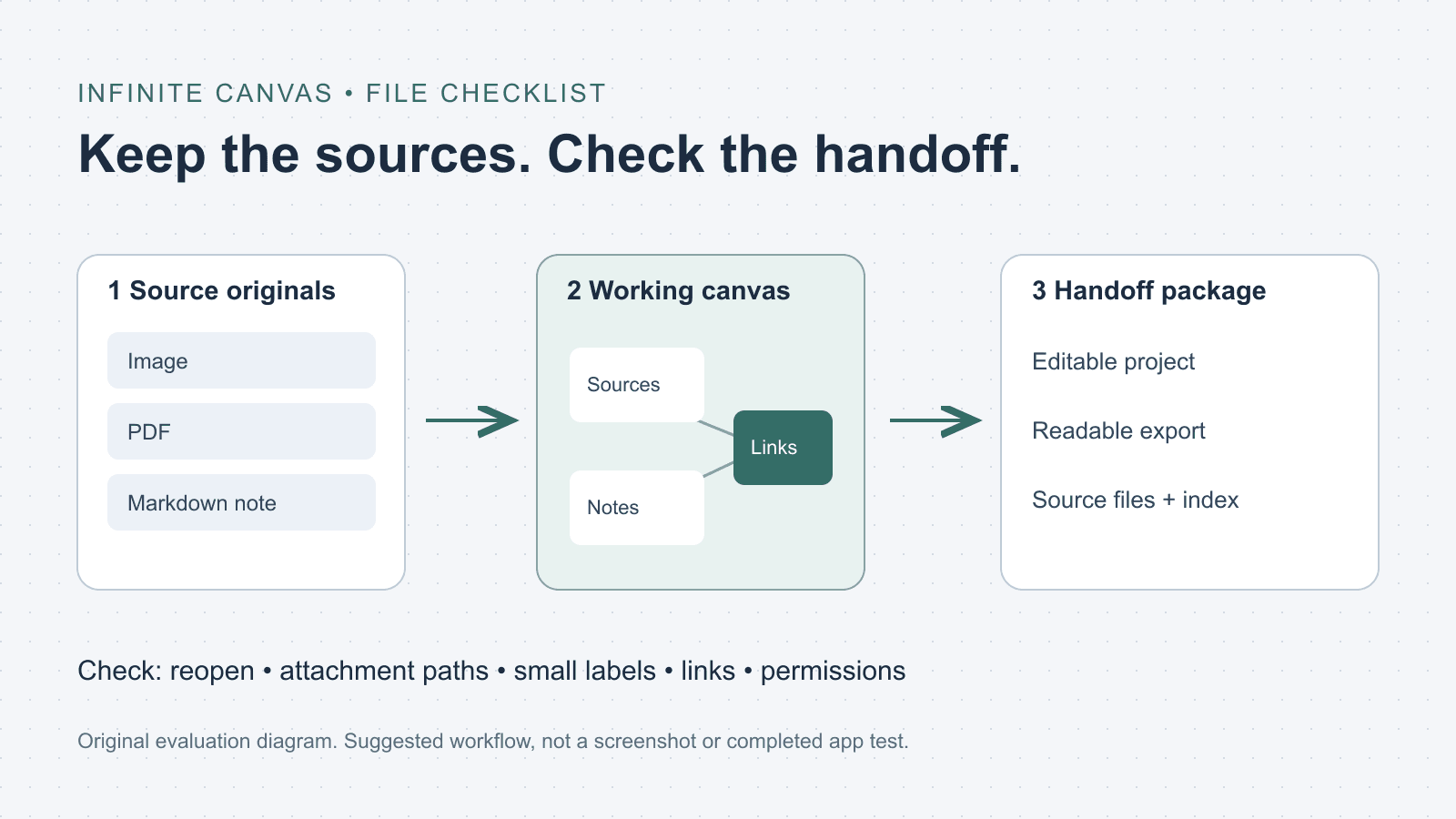
Sources checked:
Prepared with AI assistance; sources and conclusions are reviewed before publication.
On this page
An infinite canvas is a workspace you can pan and zoom across instead of filling fixed pages. You place objects where their relationships make sense: a source beside a note, several images around a brief, or a sketch beside its alternatives. "Infinite" describes how you navigate the workspace. It does not promise unlimited storage, file support or editing capacity.
If you are choosing one for visual research, start with the files you need to keep and the work you need to hand over. A good-looking exported board may still leave the next person without editable notes or original attachments.
Choose the canvas around your task
InfiniteCanvas.tools describes the spatial interface and shows examples across drawing, design, notes and collaboration. Those categories share a way of navigating, but they can produce different kinds of work.
| Your next task | What to check before choosing |
|---|---|
| Sketch and revise an illustration | Stroke editing, reference-image handling and the native drawing format on your operating system |
| Organize PDFs, images and written notes | Supported imports, whether notes remain editable, and where attachments are stored |
| Run a workshop with other people | Editing permissions, participant access and the exact export your recipient can use |
| Keep sources beside AI responses | Supported input types, provider setup, separate model charges and how you check the response against its source |
Write down one required output: "My colleague must reopen and edit the notes" is a different requirement from "My client must view a readable two-page PDF."
Try three files before moving a whole project
Use material you are allowed to upload: one image, one short PDF and one Markdown note. This is a proposed evaluation checklist, not a benchmark we ran in the apps below. Use a trial or a version you already have access to; check the plan and permissions before paying.
- Import each file. Can you see the image at useful detail, read the PDF and change the note? Record whether the PDF is a preview, extracted text or an attachment. These are different outcomes.
- Arrange the files and connect a note to its source. Add a label explaining the relationship, such as "detail used in the final illustration."
- Save the native project, then reopen it. Check that the content and layout remain usable. If the app lets you choose a backup location, include that location in your record.
- Export a version the recipient can view. Open the exported file separately and check small labels, page boundaries and links. Seeing an export preview inside the app is not enough.
- Test a copy of the handoff folder. Reopen it from a different folder or device if that is part of your intended workflow. Look for missing attachments or paths that still point to your original working folder. Keep the original project intact during this check.
For each step, mark works, needs a workaround or fails a requirement. A workaround is acceptable only if you can repeat it when the project grows.
Check what the export preserves
A PNG or JPG gives someone a picture of the board. It does not carry the original editable nodes. A native project can preserve editing, but may require the same app or platform. An open file format makes inspection possible; it does not guarantee that another app imports every feature.
The official documentation illustrates why this distinction matters:
- Obsidian Canvas stores its layout in the open JSON Canvas format and can contain notes, attachments and webpages. It can also hold text-only cards. Obsidian says those cards do not appear in Backlinks until converted to a file. If a note needs to participate in your wider note system, include that conversion in your check.
- Miro's export guide says each frame becomes a page when exporting a PDF. Small-file PDF exports do not retain links; the guide distinguishes them from the higher-quality export. CSV exports usually lose board structure and relationships, with a documented exception for tables. Comments are not included in exported boards. Check your plan and board permissions because the owner can restrict export.
- Concepts' export documentation distinguishes a native drawing from viewing formats and lets you choose an export region. It also states that the iOS native
.conceptformat and the Windows/Android.conceptsformat are not interchangeable. If your handoff crosses those platforms, do not assume a native save will reopen there.
These are documented constraints, not a ranking of the apps. Recheck the relevant export guide when your workflow or plan changes.
A handoff example you can copy
Suppose you have two image versions, a reference PDF and a note explaining your selection. Keep a small handoff folder with the original sources, an editable project where supported, a readable export, and an index describing their roles.
visual-research-handoff/
  README.txt
  sources/
    image-v1.png
    image-v2.png
    reference.pdf
    decision.md
  project/
    native-project-file
  views/
    review-board.png-or.pdf
Replace the placeholder filenames with the formats your app actually supports. The layout is a suggested folder convention, not an import format.
Put this short record in README.txt:
Purpose: compare v1 and v2 and explain the selected detail
App and version: [record the version used]
Editable project: [filename and required app/platform]
Readable export: [filename]
Source originals: [filenames]
Attachment paths checked: [result and date]
Links or comments omitted from export: [list]
Reopen check: [result, device/platform and date]
The record lets the recipient decide whether to read, edit or rebuild the board. Keep the original sources even when a project appears to embed them, unless you have verified that its export contains everything you need.
Where Creatos fits
Creatos is one option when your recurring task brings source material, notes and AI work together on a desktop canvas. Its flow-editor documentation lists image, PDF, TXT and Markdown imports, plus JSON and PNG exports. It describes JSON for reusing a workflow and PNG for sharing the canvas visually. A Creatos JSON export should not be assumed to import into Obsidian, Miro or another canvas app.
The 48-second research-canvas example is an existing Creatos recording showing source material, notes and an AI response together. It is useful for seeing that workflow before considering a purchase. It does not demonstrate this three-file evaluation or a cross-app migration.
The desktop license is $69 once; model API usage is billed separately by your provider. Check the setup requirements and supported provider before using AI nodes. If you only need a shared workshop board or a drawing app, choose around those requirements. For recurring research work, run the file and handoff checks first, then decide whether the documented Creatos workflow matches what you need to do next.
Sources
Continue reading
Browse all posts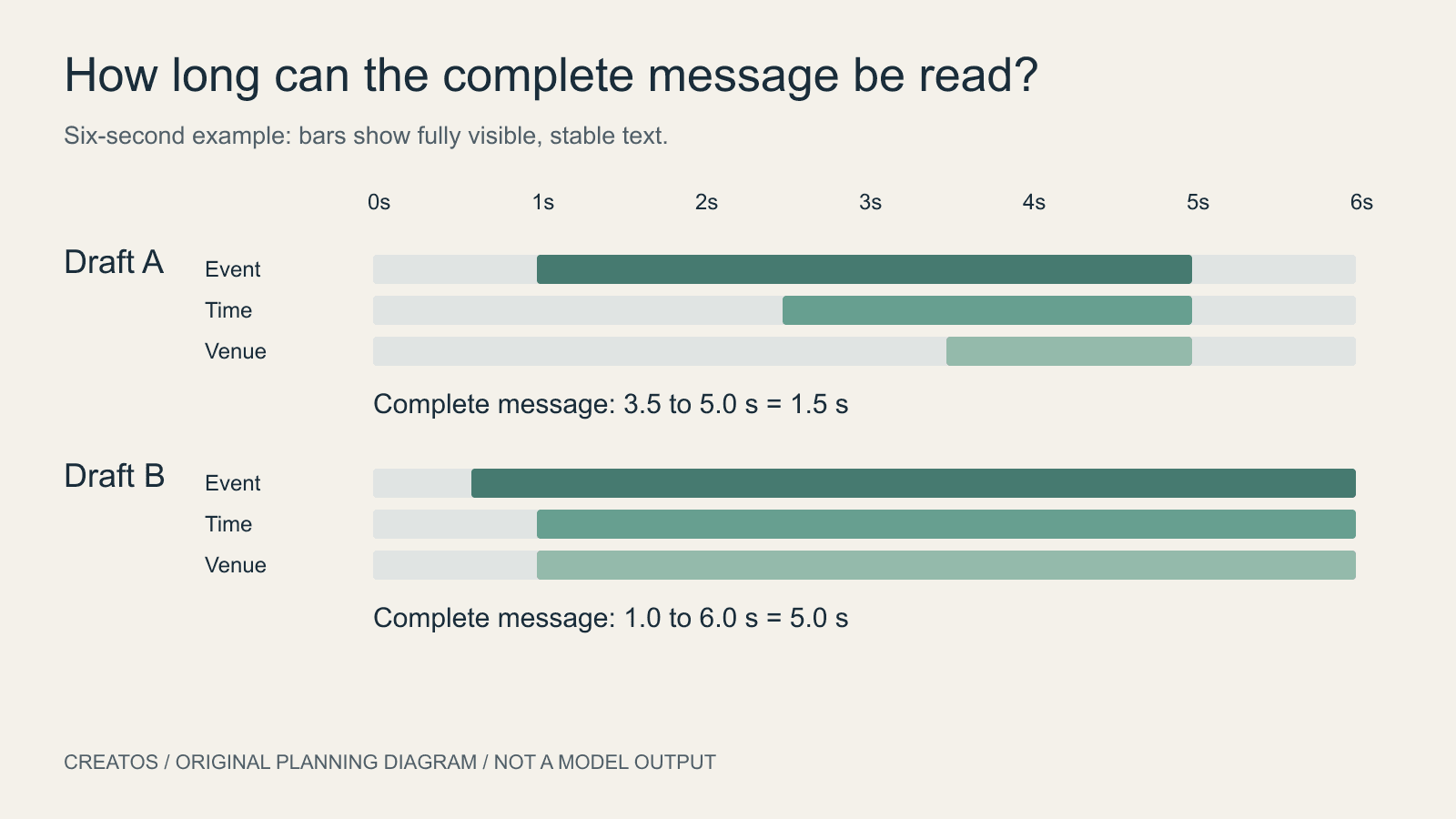
AI motion posters: give the message time to be read
Plan an AI motion poster around readable text. A six-second example compares two schedules and shows how to calculate the shared reading interval.

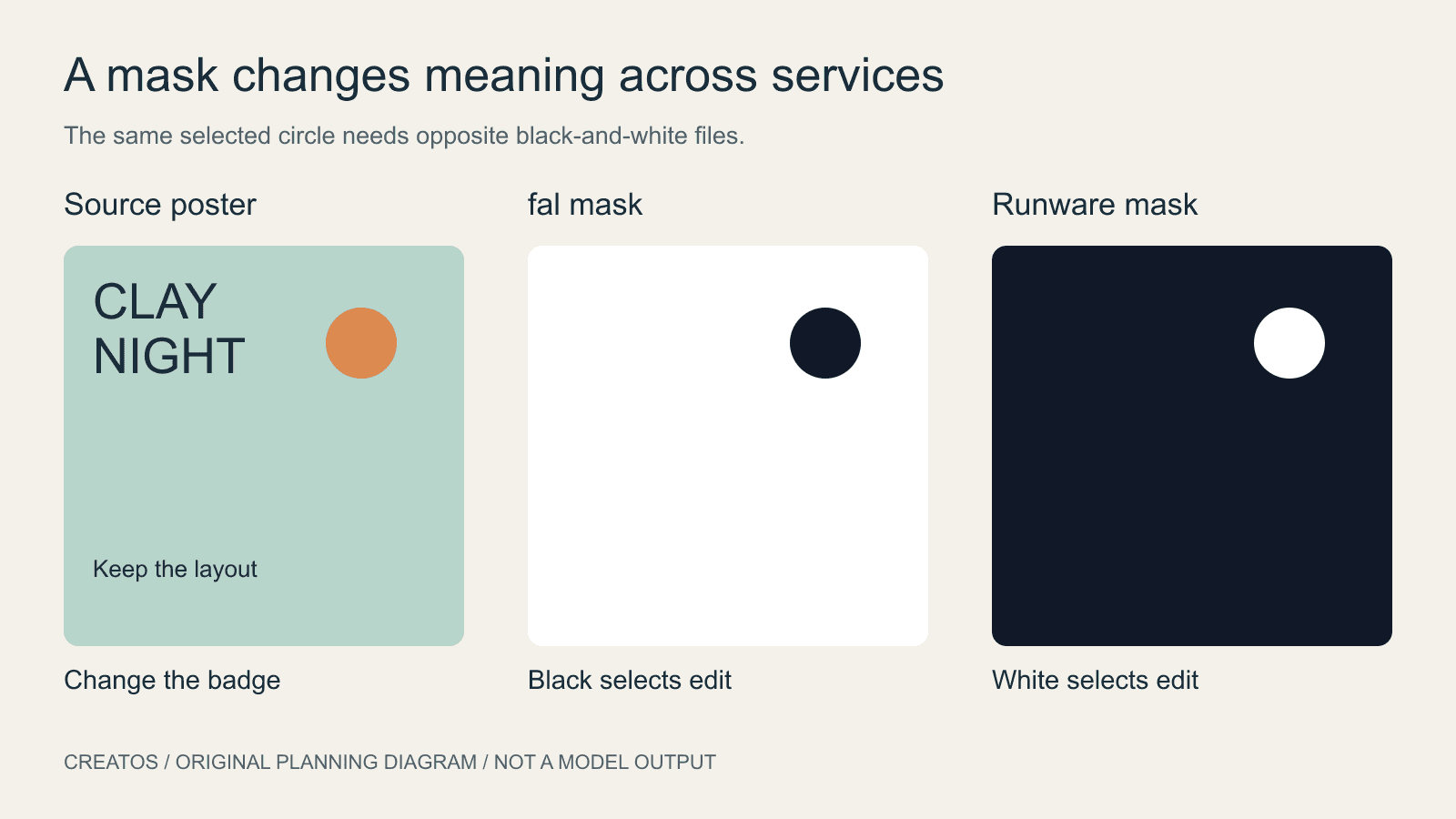
Ideogram 4.5 masks: black or white depends on the service
fal and Runware document opposite mask colors for Ideogram 4.5. Compare the conventions and check a local edit before submitting a full-size mask.
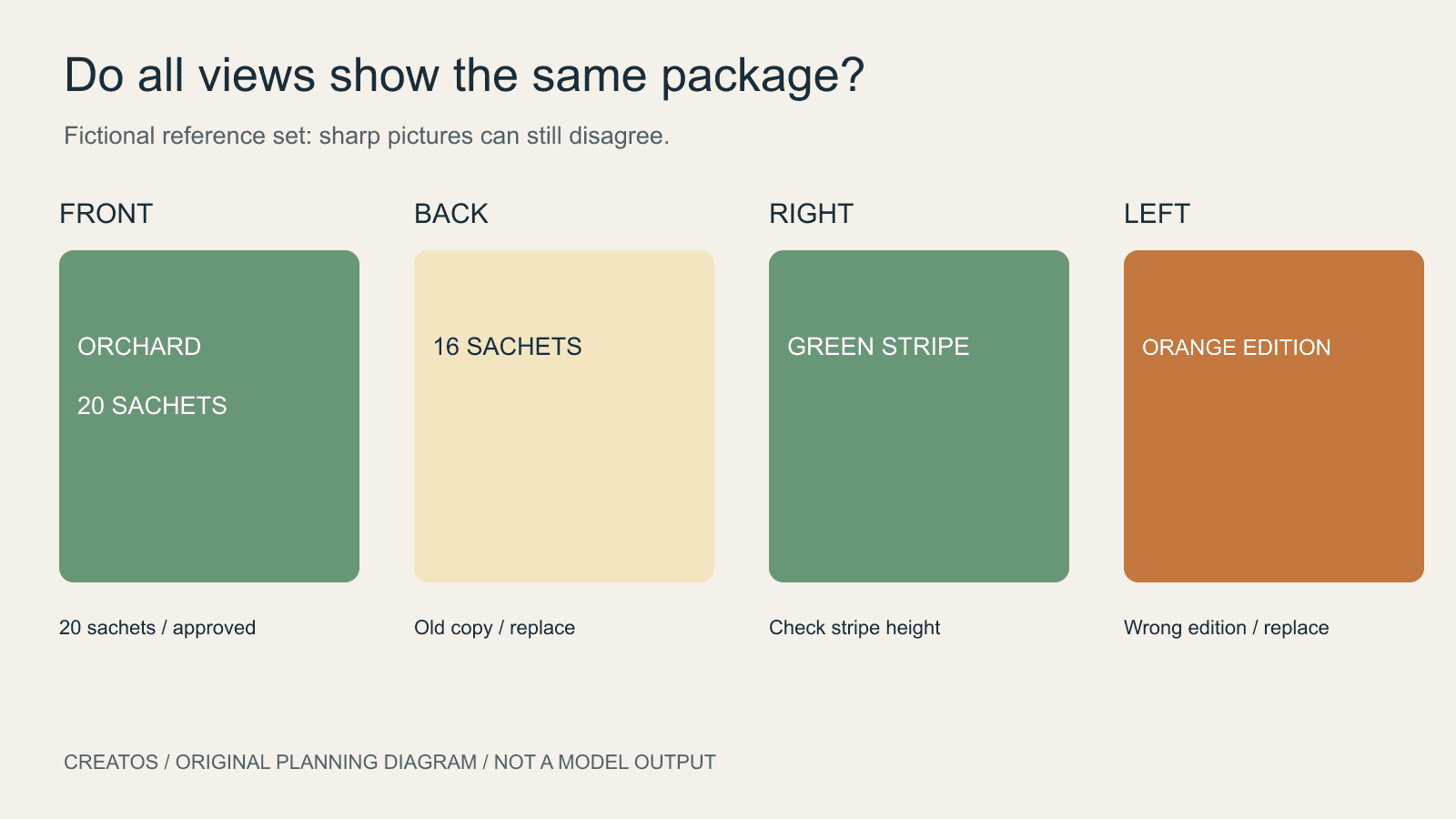
Meshy packaging references: match every visible face
Prepare Meshy packaging references that agree on every visible face. Check editions, wording and graphic seams before reviewing a generated 3D product demo.