
Suno v6 migration: what to save for a video project
Preserve the exact Suno audio, export ranges and cue notes used in your video edit. Understand what changes with v6 and check your saved files.
Prepared with AI assistance and source review. This is a documented workflow guide, not a tested Suno migration.
On this page
If a Suno track is already part of a video edit, preserve the exact audio file and the points where you used it before making a new version. Save the working mix, any separate tracks you still need to adjust, and a short note linking them to the video timeline.
The reason is a change in how you can continue a song, not an announcement that existing songs will disappear. Suno's v6 announcement, dated September 9, describes its move to the new model family. The current v6 FAQ says earlier models have retired, existing songs remain unchanged in the library, and new iterations use v6. Listening to an old result and generating its next version are different operations.
This guide combines the current documentation with a suggested handoff method for video creators. We have not tested a Suno account migration or exported audio from Suno for this article.
Start with the version in your edit
Locate the audio file your video project actually references. A song title alone may not tell you whether it is the original, a cover, a remaster or a shortened export. Note its filename, duration and Suno song link or ID. If you know the model version, record it; leave it unknown when you do not.
Keep that file unchanged while you try v6 alternatives. Give a new iteration a new filename and import it as a separate candidate. Otherwise, a later collaborator may see a familiar filename without realizing that the underlying music changed.
The first priority is the version already used in a project you intend to finish. Then preserve alternatives with specific reusable parts, such as an intro you want to revisit. You can make a broader library archive separately, within the download options available to your account.
Choose the export that preserves your next editing option
A finished mix lets you replay the approved sound. Separate tracks give you material to adjust in an audio editor. A selected range preserves a particular passage. Those files serve different purposes, so decide what you still need to change before exporting.
For creators with Studio access, Suno's export guide describes three choices in the menu above the timeline: the whole mix, a selected time range, or multitrack stems. It also documents downloading an individual clip as WAV from its context menu. These are documented options, not steps we have verified in a signed-in session.
If you only need to place a completed piece under a video, preserve the mix you intend to use. If you expect to lower the vocal beneath narration, retain the relevant separate tracks when available and audition them before relying on them. Do not assume an export label proves that every instrument is isolated cleanly or that separate files will reconstruct your preferred mix without adjustment.
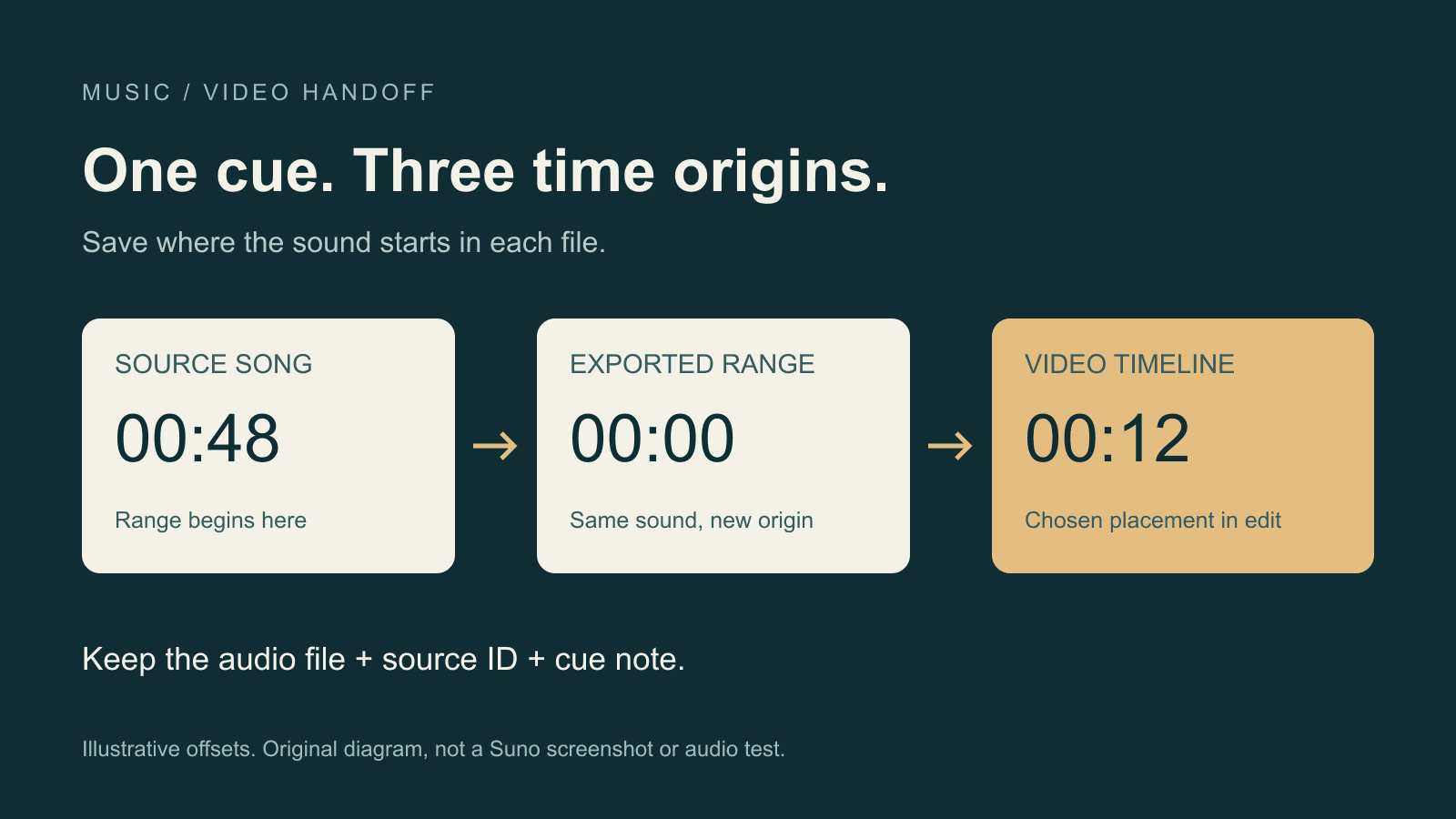
For a range export, write down where that range began in the full song. A cue at 00:48 in the source becomes 00:00 in a file exported starting there. If that exported file is placed 12 seconds into a video, the same sound has three labels: 00:48 in the source song, 00:00 in the exported range, and 00:12 in the video. These are illustrative offsets. A collaborator who sees only “start at 00:48” could cut the wrong part of the shorter file.
Download availability depends on the route and account. Check Suno's current download policy before planning a large archive. It distinguishes subscription allowances, trial downloads and Studio workflows. Downloading a file is not by itself a blanket permission for every use; that page also states that trial downloads are not eligible for commercial use.
Keep a cue note with the files
An audio folder needs enough context to answer two questions later: which recording is this, and where does it belong in the video?
This is a blank template, not metadata extracted from Suno:
Project / video revision:
Approved audio filename:
Suno song URL or ID:
Model label, if known:
Downloaded on:
File duration:
Export type: full mix / selected range / separate track
If a range: start and end in the source song:
Placement in video: start and end:
Important cue: timestamp + what happens there:
Related stems / alternate versions:
Lyrics, prompt and reference notes saved at:
Usage terms checked: source link + date + relevant condition
Still needs checking:
For timing that must be frame accurate, use your editor's timecode and record the project's frame rate. Minutes and seconds can be enough for a rough cue, but they should not silently become an exact cut instruction.
The metadata problem is visible in public discussions too. In the Backup Your Library thread, commenter Fragrant-Version7760 described wanting final audio together with creation dates, prompts, lyrics and song IDs. Their later comment distinguishes obtaining audio from obtaining all the associated metadata. That is a user's report; it does not establish what every current export includes. Check your own downloaded files and fill missing context in the note.
Check that the saved material is usable
Open the downloaded file locally, outside the Suno page. Confirm that it plays, has the expected duration, and contains the passage used in the video. Listen around the entrance and ending, not only the opening seconds.
Then reopen a copy of the video project with the saved audio. Check the important cue against the intended image change. If you exported a range, use the range's own time origin. If you downloaded stems, audition the files you will actually edit and check their alignment before discarding any working mix.
Keep another copy of the files and cue note in your usual backup location. A successful download is only the first check; being able to locate and use the right version is the useful outcome.
Put the visual references and cue notes together
Creatos can hold the text side of this handoff: paste the cue note into a named Content node and import relevant storyboard frames beside it. Its quick start documents text and image Content nodes. Keep the audio files and video project in their normal editing and storage tools; this suggested arrangement does not imply Suno integration, stem editing or audio playback in Creatos.
When you make a v6 revision, preserve the earlier cue note and record what changed. The editor can then decide whether the new music still fits the existing cut or requires a new one.
Sources
- Introducing v6 · Mikey Shulman ·
- v6 FAQ · Suno ·
- Exporting from Studio · Suno ·
- How do downloads work? · Suno ·
- Backup Your Library — discussion · u/Fragrant-Version7760
- Creatos Quick Start · Creatos
Continue reading
Browse all posts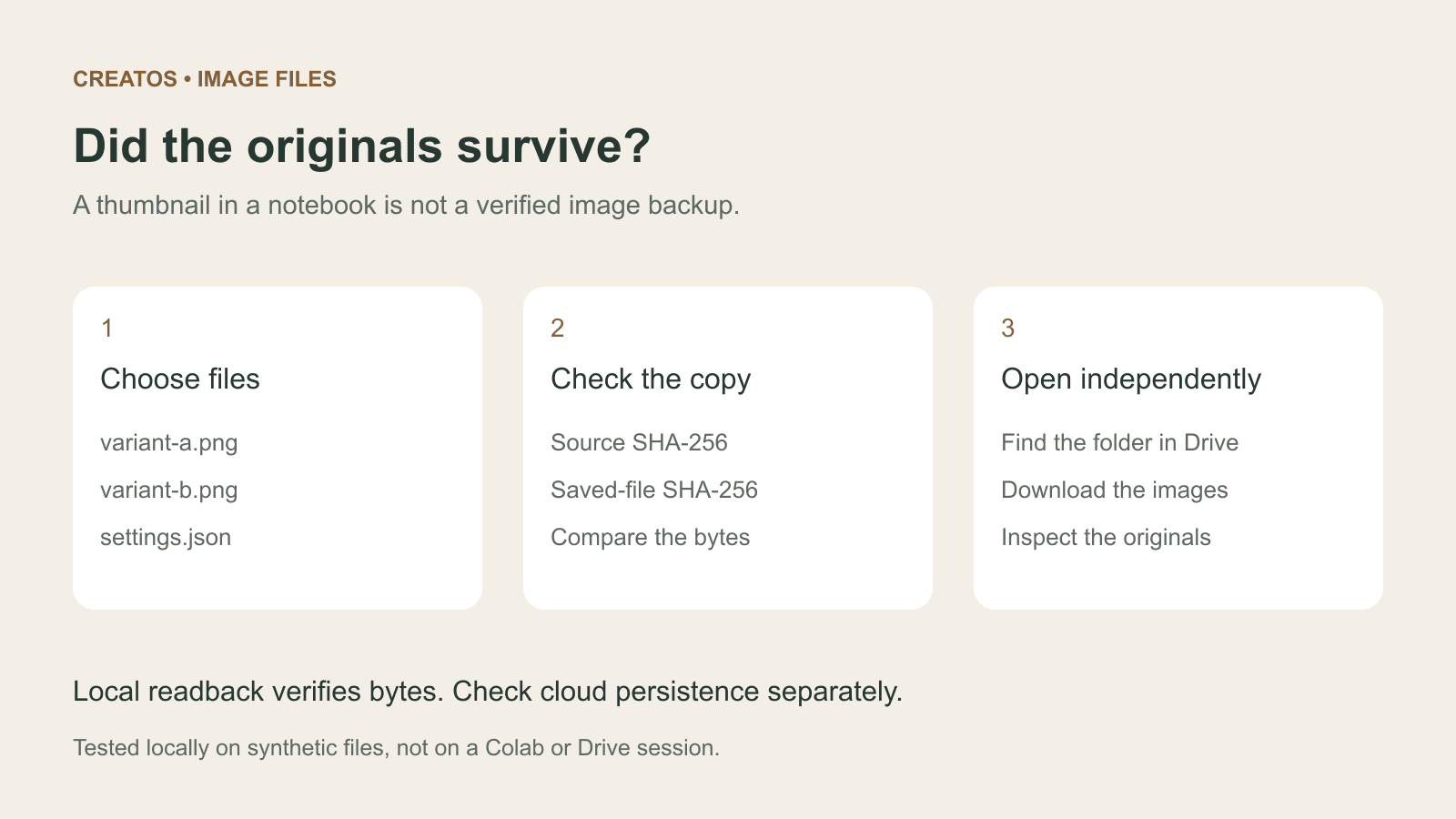
Save Colab images before a runtime reset: verify the copy
Keep generated PNGs and settings outside the Colab runtime. Use a locally tested copy-and-hash helper, then check the files independently in Drive.

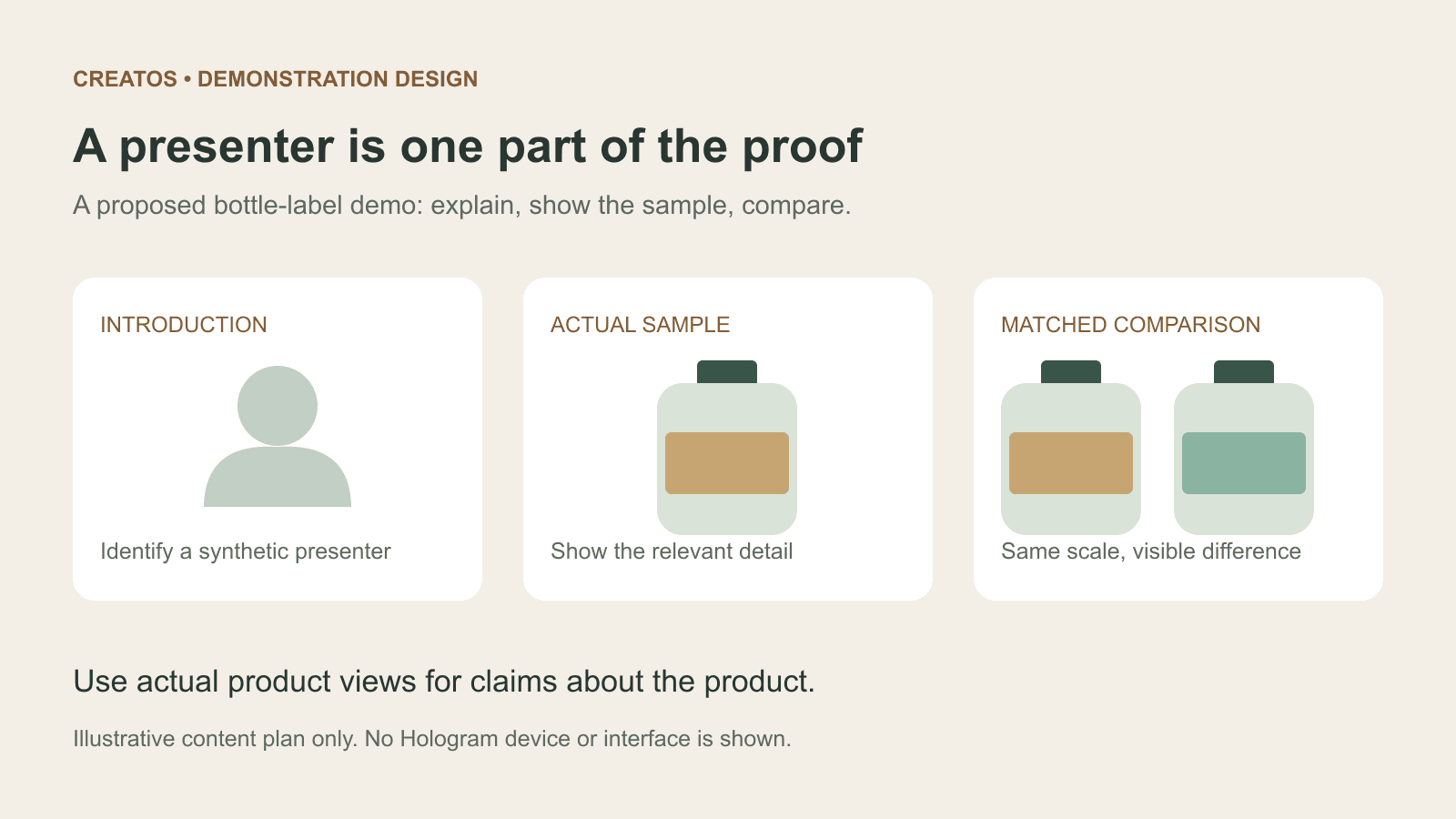
Meta Hologram vs a live camera in product demos
Separate an AI presenter from evidence of a product. A proposed 35-second label demo shows when to use actual photos, screen recordings and captions.
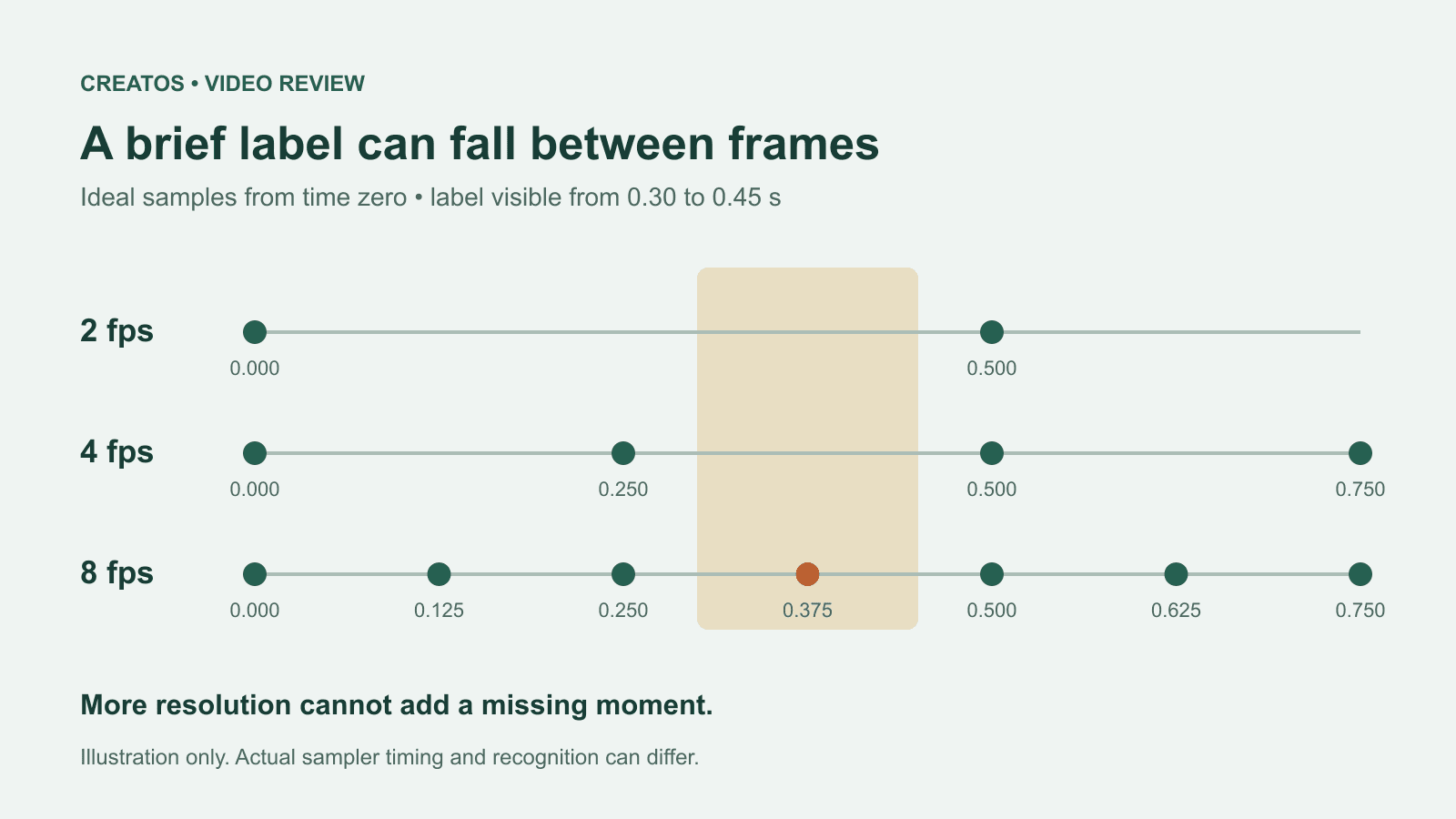
MiMo video review: why short details disappear
A worked sampling example shows why MiMo can miss a brief label, how fps differs from resolution, and what to check before approving a product video.