
What is a vector image? Check the source before you hand it over
Learn what makes an image vector, inspect SVG and PDF contents, and separate editable artwork from review previews with a practical handoff checklist.
Sources checked:
Prepared with AI assistance; sources and conclusions are reviewed before publication.
On this page
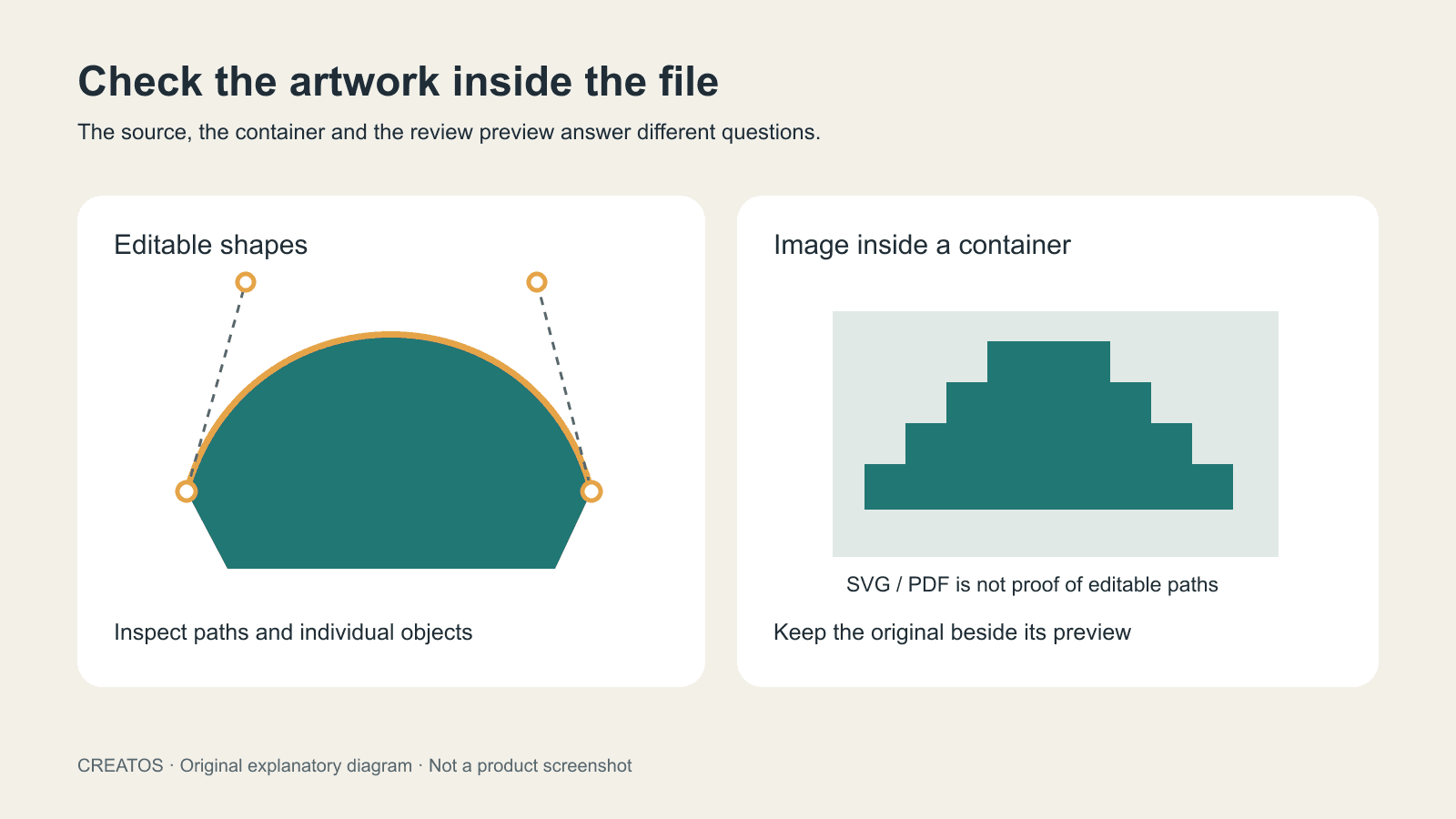
A vector image describes shapes with paths and coordinates instead of storing the picture only as a grid of pixels. That makes it useful for artwork you need at several sizes, such as a logo. A PNG or JPEG stores pixels. Putting either one inside an SVG does not turn those pixels into editable vector shapes.
If someone has asked you to deliver a vector, check the artwork inside the file before sending it. A filename is only the first clue.
What changes when an image is vector?
Adobe's vector-file guide explains the distinction between mathematical shapes and raster pixels. Vector shapes can be rendered at different sizes without enlarging a fixed pixel grid. Photos usually remain raster images because their detail is already represented by pixels.
| What you need to do | Useful starting point | What to check |
|---|---|---|
| Resize a simple logo for several outputs | Original vector artwork | Are the actual logo shapes editable? |
| Publish a photograph | Raster image at suitable dimensions | Does it look clear at the intended display size? |
| Review several visual options | Image previews with labels | Which original does each preview represent? |
| Change a curve or replace a shape | Source document in a suitable editor | Are objects accessible, or is the design one placed image? |
AI, EPS and SVG are common vector-oriented formats. PDF can be used to exchange artwork, but its contents still need checking. Do not infer editability from an extension alone. MDN documents that SVG's image element can contain a raster image. A sharp preview at one size is also not proof of vector construction.
Check a file before calling it a vector
Use a copy of the file in an editor that supports its format. Keep the original untouched while you inspect it.
- Select an individual shape. Can you expose its path or nodes, or do you only select a rectangular image?
- Inspect more than one element. The lettering, background and emblem may have different construction, even in the same document.
- Inspect placed or linked images. Ask whether they belong in the deliverable and whether the recipient will receive the needed assets.
- View the design at the intended output size. Check thin lines, small text and any raster sections separately.
- Ask the recipient which file format and editing requirements they need. A vendor's production requirement is more specific than “send a vector.”
Zooming can reveal pixelation, but it cannot prove that every part of a file is editable. If your viewer cannot inspect objects, ask the designer for the source document and a description of its contents.
Example: a logo that arrives as three files
Suppose a client sends logo.png, logo.svg and logo-preview.pdf. This is a constructed delivery example, not a test of those files.
The PNG is useful for a review board. Open the SVG in a suitable editor and inspect the emblem and lettering. If the emblem is a placed bitmap, the SVG extension does not satisfy a request for editable emblem paths. The PDF may be convenient for approval, but approval of its appearance does not establish what can be edited.
Record the result in a short note:
Artwork: coffee-shop emblem, revision 03
Appearance approved: yes / no
Editable source checked: filename and application
Shapes checked: emblem / lettering / background
Raster elements remaining: list or unknown
Preview: filename
Recipient's required format: confirm before delivery
Outstanding work: redraw, trace, supply assets, or none
Renaming logo.png to logo.svg does not perform a conversion. If you trace or redraw a bitmap, review the resulting paths as a new version. Check lettering, corners and small details against the reference instead of assuming the conversion preserved them.
Keep the source and review image connected
For a project with several options, make a board with one image preview per version. Add the source filename, revision and the specific decision beside each preview. “Choose this curve, keep the other version's spacing” is more useful than an unlabeled folder of nearly identical pictures.
Creatos can support that review stage through its documented image imports, text nodes and sticky-note grouping. Its flow-editor documentation lists JSON and PNG canvas exports. A PNG export is a visual copy of the board; it is not a vector source deliverable. Keep the original vector artwork in the authoring workflow and check those documented canvas capabilities before deciding whether the extra review space would help your project.
Before handoff, confirm two separate things: the recipient has approved the appearance, and the files meet the editing or production requirement. Put both answers in the delivery note.
Sources
Continue reading
Browse all posts
How to make a mood board that settles a visual direction
Make a mood board from a clear brief. Use a worked coffee-brand example, reference annotations and a decision record to choose a usable visual direction.

What is an infinite canvas? A file and handoff checklist
Choose an infinite canvas by checking file imports, editable projects and export limits. Includes a three-file evaluation checklist and a handoff folder template.
AI motion posters: give the message time to be read
Plan an AI motion poster around readable text. A six-second example compares two schedules and shows how to calculate the shared reading interval.