
Turn voice feedback into a clear design revision log
Convert spoken design feedback into specific changes with an object, constraint and review test. Includes a poster example, conflict handling and a copyable prompt.
Sources checked:
Prepared with AI assistance and source review on September 16, 2026. Examples are illustrative, not provider benchmark results.
On this page
Turn spoken design feedback into a revision log before making edits. Each request needs an object, a change, something to preserve and a way to judge the result. If a voice assistant hears “make that bigger,” it also needs to know what “that” refers to.
Google's Gemini 3.8 Live announcement describes visual input during conversation and background tool use. It includes a demonstration of voice feedback applied to a sketch. That shows the direction of the product; it does not prove that an assistant will identify every object in your design correctly. Google's announcement
The method below works with a typed transcript too. It does not depend on a particular voice feature being enabled in your account.
Keep the words, then interpret them
Imagine reviewing a fictional workshop poster. The spoken feedback is:
“The title is fighting the picture. Give it more room. The blue feels cold, but don't change the photograph. And make the date easier to see.”
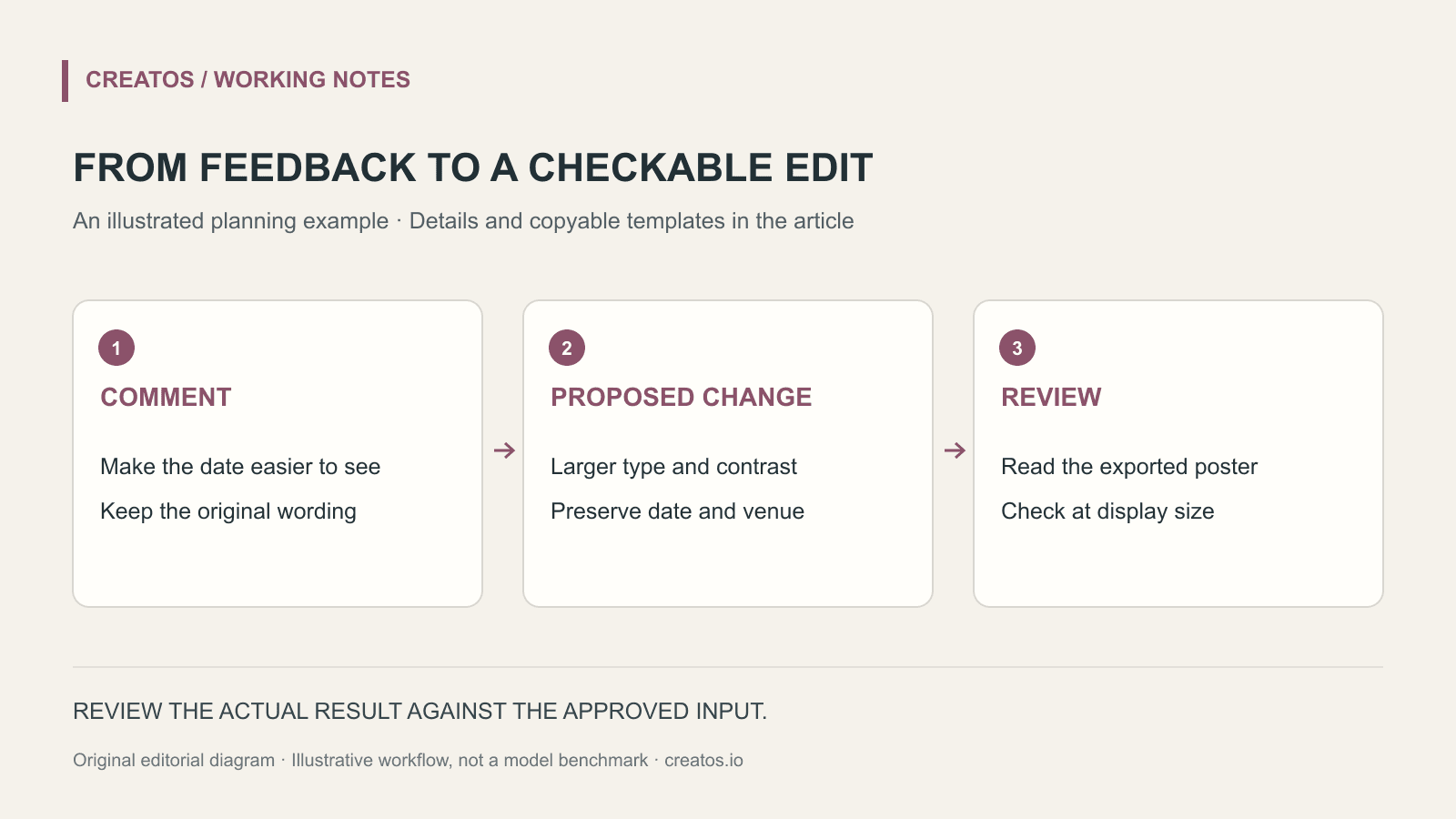
That is a useful reaction, but it contains several possible edits. Keep the original comment and separate it from your interpretation:
| Original feedback | Proposed edit | Preserve | How to review |
|---|---|---|---|
| “Title is fighting the picture” | Move the title into the empty upper margin | Title wording and photograph | Title no longer overlaps the subject |
| “Give it more room” | Increase spacing below the title | Poster dimensions | Check whether the spacing resolves the crowded area |
| “Blue feels cold” | Try a warmer blue for the background only | Photograph's original colors | Compare both backgrounds beside the same photo |
| “Date easier to see” | Increase the date's size and contrast | Exact date and venue text | Read at the intended display size |
These are proposed interpretations, not decisions the speaker explicitly made. “Give it more room” could also mean a larger image crop or a shorter title. If that choice materially changes the design, ask a focused follow-up before editing.
Label the objects before a voice review
Use visible labels such as TITLE, DATE, PHOTO and BACKGROUND on a review copy. When the speaker says “this blue,” ask them to name the label. Preserve the original design as a separate version so the review labels do not accidentally appear in the deliverable.
You can give the assistant this instruction:
Turn my feedback into a proposed revision table.
Do not edit the artwork yet.
For each row include:
the original wording, object label, proposed change,
details to preserve, and any unresolved interpretation.

Separate explicit requests from your suggestions.
Do not rewrite dates, prices, names or quoted text.
If two requests conflict, show the conflict together.
Keep this table with the review copy. If the assistant summarizes everything as “improve the visual hierarchy,” ask it to restore the specific objects and the speaker's wording. The summary alone is too vague to guide a revision.
Resolve conflicts in the log
Suppose the next comment is “Keep the title exactly where it is.” That conflicts with the proposed move in row one. Mark the earlier proposal as superseded and revise the plan: test a smaller photograph or more title contrast while keeping the title position fixed.
Do not delete the earlier comment. A brief reason explains why the revised design follows a different path. For example: “R2 supersedes R1 title move; reviewer confirmed fixed title placement.” Use actual revision identifiers and dates in a real project, not the fictional labels from this example.
Limit the first edited version to the agreed changes. If the assistant also changes the font and crops the image, the reviewer now has extra decisions to untangle. Keep those ideas in a separate suggestions list for later.
Close the loop on the rendered result
Compare the original and revised poster at the size people will see it. A date readable on a large editing canvas may still be too small in a phone preview. Read the exact date aloud from the exported file and compare it with the approved copy.
Record the outcome for each row: accepted, needs another revision or intentionally unchanged. “Done” should mean that the exported version passed the stated review, not merely that a tool reported the edit completed.
Creatos can hold the original image, revised image and text feedback as neighboring content nodes. See the content-node guide for supported inputs. It is a place to keep the review context; this workflow does not claim a live connection to Gemini or automatic approval of edits.
The poster conversation and revision log are original fictional examples prepared on September 16, 2026. We reviewed Google's published description, but did not perform the voice-driven design demonstration ourselves.
Sources
Continue reading
Browse all posts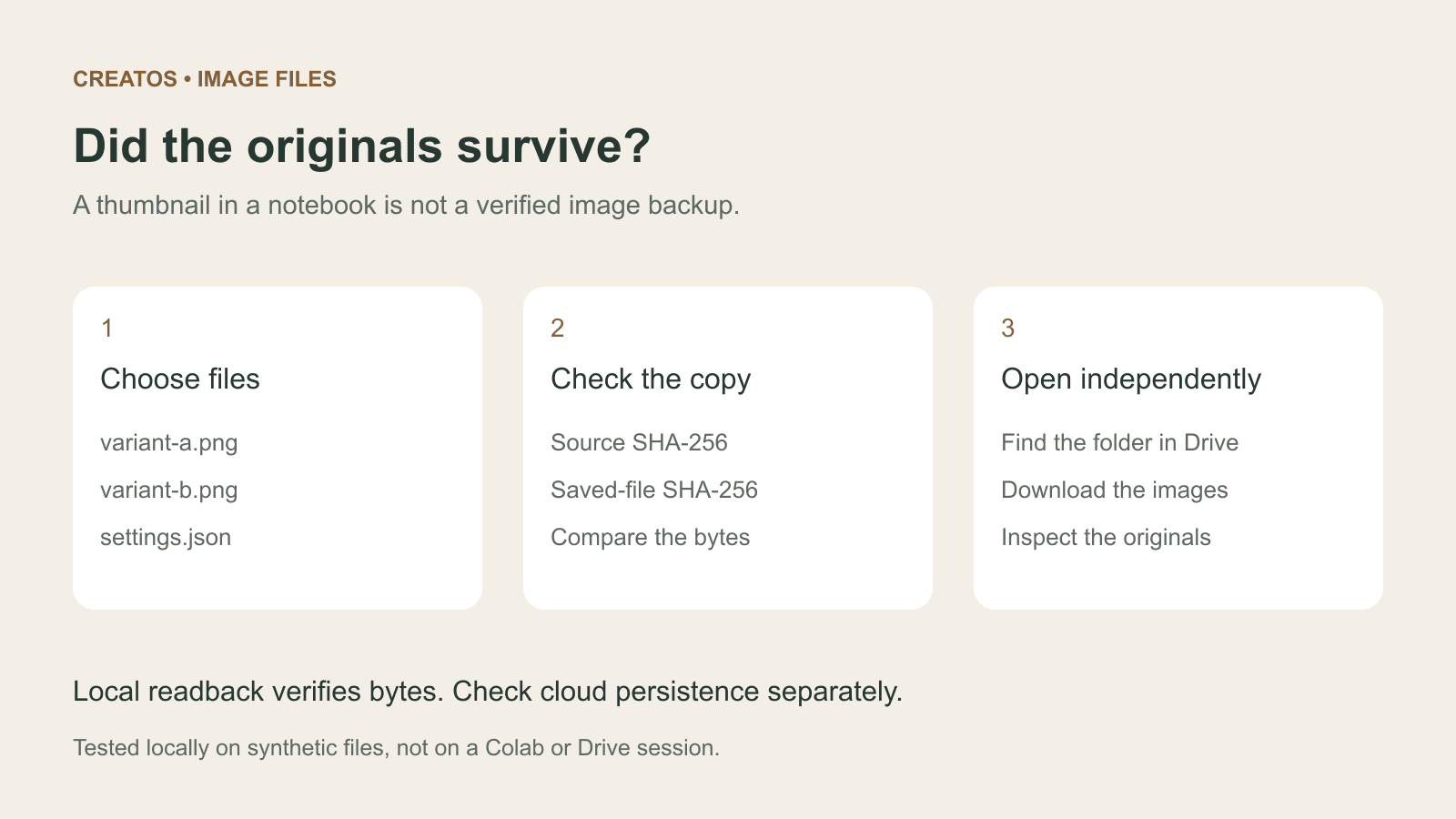
Save Colab images before a runtime reset: verify the copy
Keep generated PNGs and settings outside the Colab runtime. Use a locally tested copy-and-hash helper, then check the files independently in Drive.

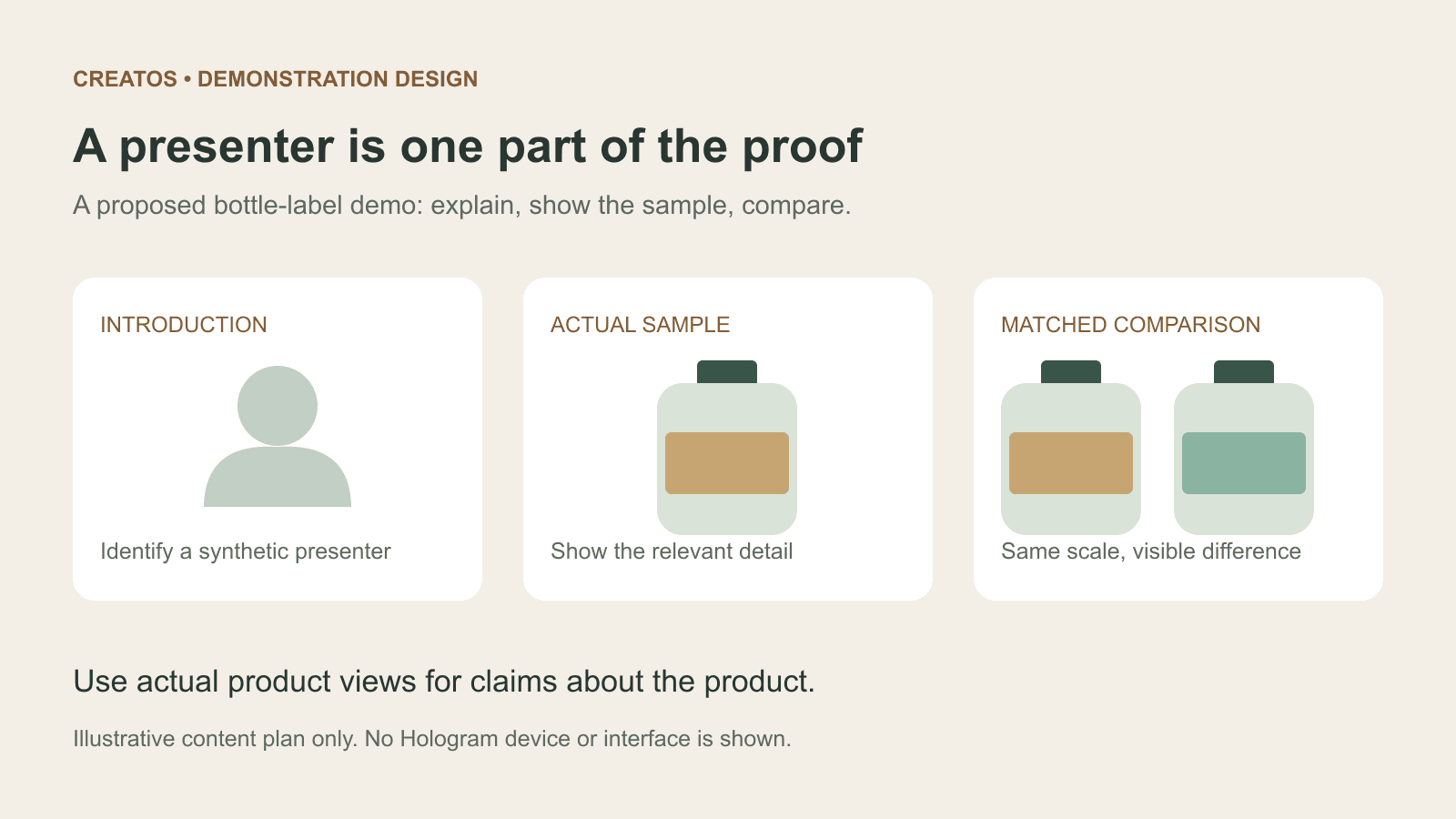
Meta Hologram vs a live camera in product demos
Separate an AI presenter from evidence of a product. A proposed 35-second label demo shows when to use actual photos, screen recordings and captions.
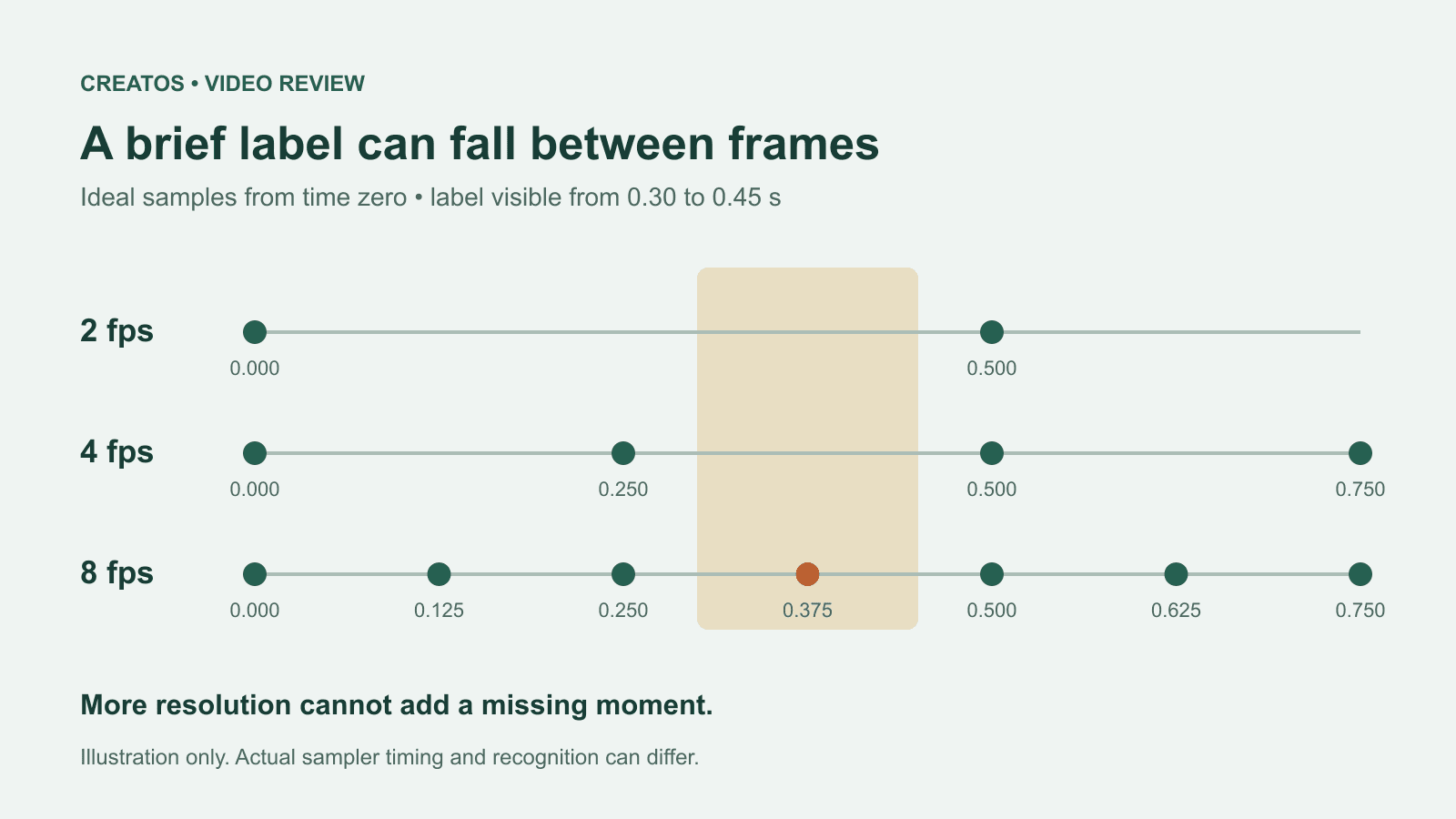
MiMo video review: why short details disappear
A worked sampling example shows why MiMo can miss a brief label, how fps differs from resolution, and what to check before approving a product video.