
Plan an AI video ending: camera route and final-frame layout
Plan an AI product reveal with separate camera and final-frame requirements. An original layout example makes placement, identity and arrival easier to review.
Sources checked:
Prepared with AI assistance; sources and conclusions are reviewed before publication.
On this page
For an AI product reveal, specify the camera's route and the final composition separately. "Orbit around the jar" describes movement. It does not say where the jar should end up, which side of its label should face the viewer, or how much room the final frame needs for a headline.
The September 29 LIFT research addresses this distinction by combining camera control with a future layout. Its project page describes an initial image, a camera trajectory, and final-frame bounding boxes with local text prompts. The example below turns that distinction into a brief you can review visually. It is our proposed planning method, not a tested LIFT workflow or universal video-model syntax.
Decide what the ending must show
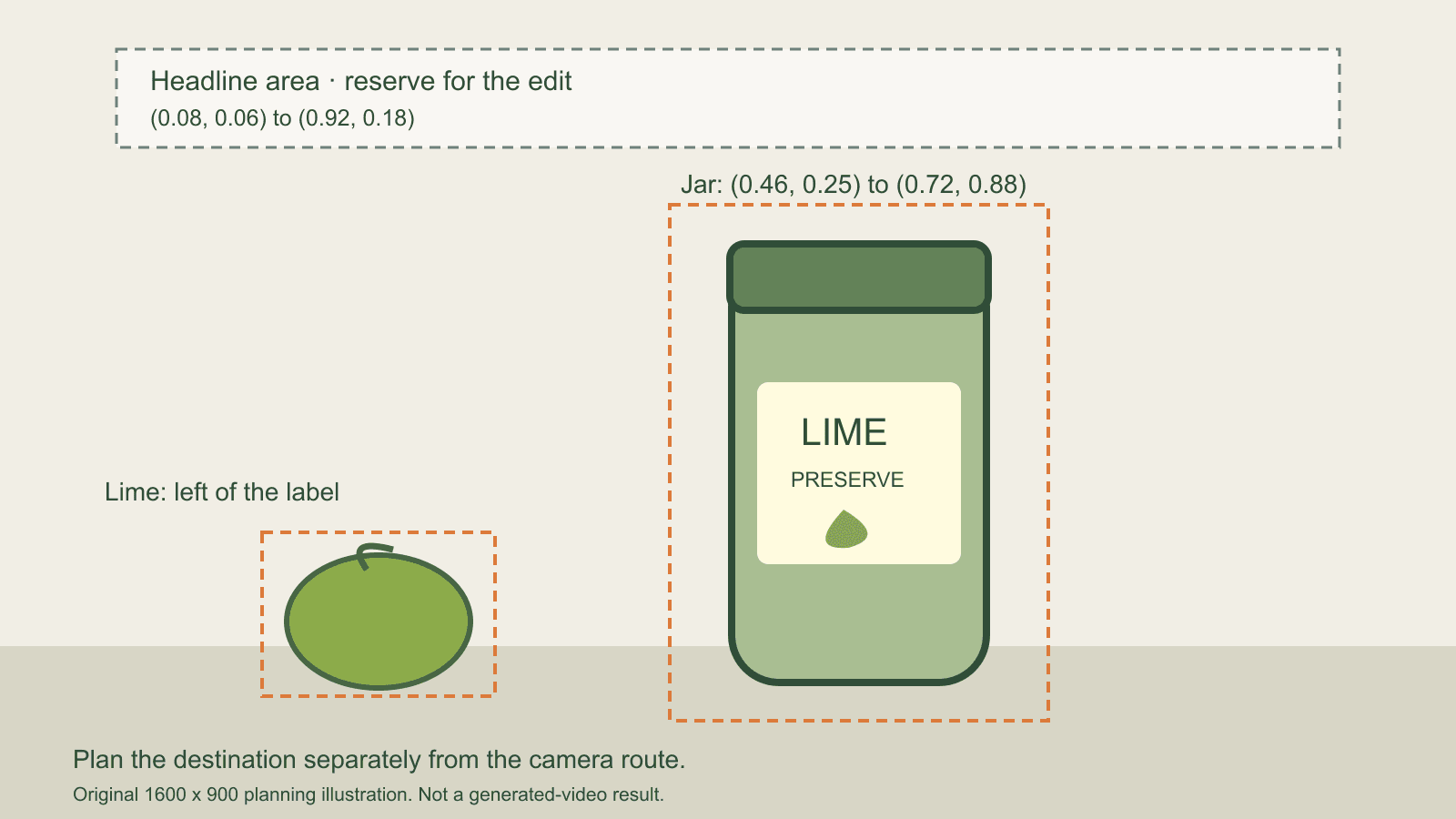
Imagine an eight-second tabletop reveal for a fictional lime preserve. The camera starts beside the jar and moves toward a frontal view. The ending needs a readable product silhouette, a lime on the left and empty space above for a headline added in the video editor.
Before writing a motion prompt, draw the intended ending. Use an existing cleared product photograph for appearance when you have one. A layout box tells you where an object belongs; it does not specify the correct label, texture or exact product identity.
For this example, use a 16:9 canvas and normalized coordinates: (0, 0) is the top-left corner and (1, 1) is the bottom-right corner. Each rectangle is recorded as left, top, right, bottom.
| Element | Proposed rectangle | What the reviewer checks |
|---|---|---|
| Jar | (0.46, 0.25, 0.72, 0.88) | Whole jar fits, label faces the camera |
| Lime | (0.18, 0.65, 0.34, 0.85) | Fruit remains left of the jar and does not cover its label |
| Headline area | (0.08, 0.06, 0.92, 0.18) | Clear space for text added later |
On a 1600 × 900 planning canvas, the jar box runs from (736, 225) to (1152, 792). Its width is 416 pixels and its height is 567 pixels. Those are layout instructions for this example, not measurements of a generated result.
The headline rectangle is a reserved editing area, not an object you must ask the model to render. Add important lettering in the editor when that is the route your project requires. A model may still place unwanted detail there, so review the actual result.
Describe how the camera arrives
Now write the route in terms of what the viewer should see. For the fictional reveal:
- During seconds 0 to 4, move from the jar's side toward its front. The lime should remain on the left; the camera should not pass through it.
- During seconds 4 to 7, approach the final viewing direction and reduce movement gradually.
- During seconds 7 to 8, hold the intended composition for the editorial ending.
These times are a proposed creative brief. They are not a claim that every generator accepts timed instructions or can satisfy them accurately. Use the controls your actual tool supports, and reduce the shot's demands if it cannot express the required path and ending.
A public creator described the opposite failure: motion looked coherent until the last second, when the video snapped into its reference image. In their account of planning backward from an ending, Almaryed_Almutamared separates the destination, route and deceleration. That is a self-reported example, not an independently reproduced result or proof that the method works for exact faces and products.
Review the route and the arrival independently
Extract the actual final frame and compare it with the planned layout. Then watch the approach at normal speed. A matching still at the end cannot show whether the transition was continuous.
| Observed result | Decision for this brief |
|---|---|
| Smooth route, but the jar blocks the headline area | Revise final composition |
| Correct final layout reached by a sudden jump | Revise the approach or use a simpler move |
| Smooth arrival and good positions, but the label changes | Reject for product identity; layout success is insufficient |
| Positions, identity and approach meet the brief | Review the final edit with its real headline and timing |
The distinction keeps the next request specific. If the route works but the jar ends too high, preserve the route while revising the ending. If the final still is correct but the approach jumps, changing the jar's colour is unlikely to address the problem.
A pair of frames is useful for explaining a layout discrepancy. It is insufficient evidence for smooth motion. Keep the actual clip available and note the interval where the jump occurs.
Show the planned frame beside the delivered one
For a review handoff, use three images: the initial reference, the planned final composition and the actual ending. Keep the planned box diagram clearly labelled so nobody mistakes it for generated footage. Add one concrete decision, such as "jar overlaps headline area; retain the left-side lime and the current camera direction."
You can import these images into Creatos Content nodes and place the route brief and decision alongside them. This is a way to present the intended and delivered compositions. It does not add LIFT camera controls, generate the video or guarantee an exact endpoint.
When the same product appears in several shots, carry the approved identity and object state into the AI video continuity sheet. Keep each shot's final composition distinct from the features that must remain consistent throughout the sequence.
Sources
- LIFT paper ·
- LIFT project page
- Planning backward from an ending frame · Almaryed_Almutamared
- Creatos Content nodes
Continue reading
Browse all posts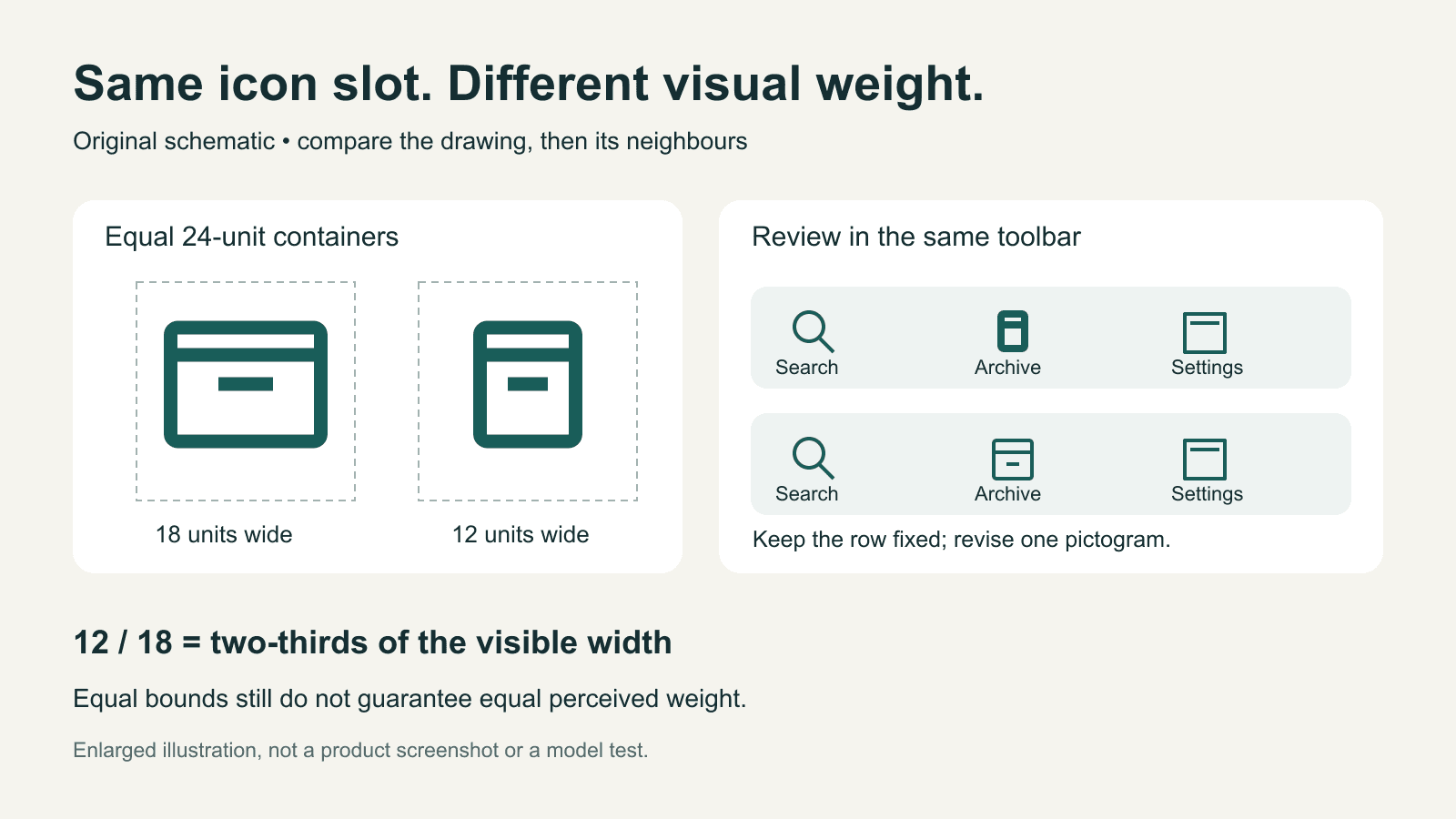
AI-generated icons: match visual weight in a real interface
Compare AI-generated icons at their real display size. Separate visible bounds, stroke weight and alignment, with an original toolbar example and revision brief.

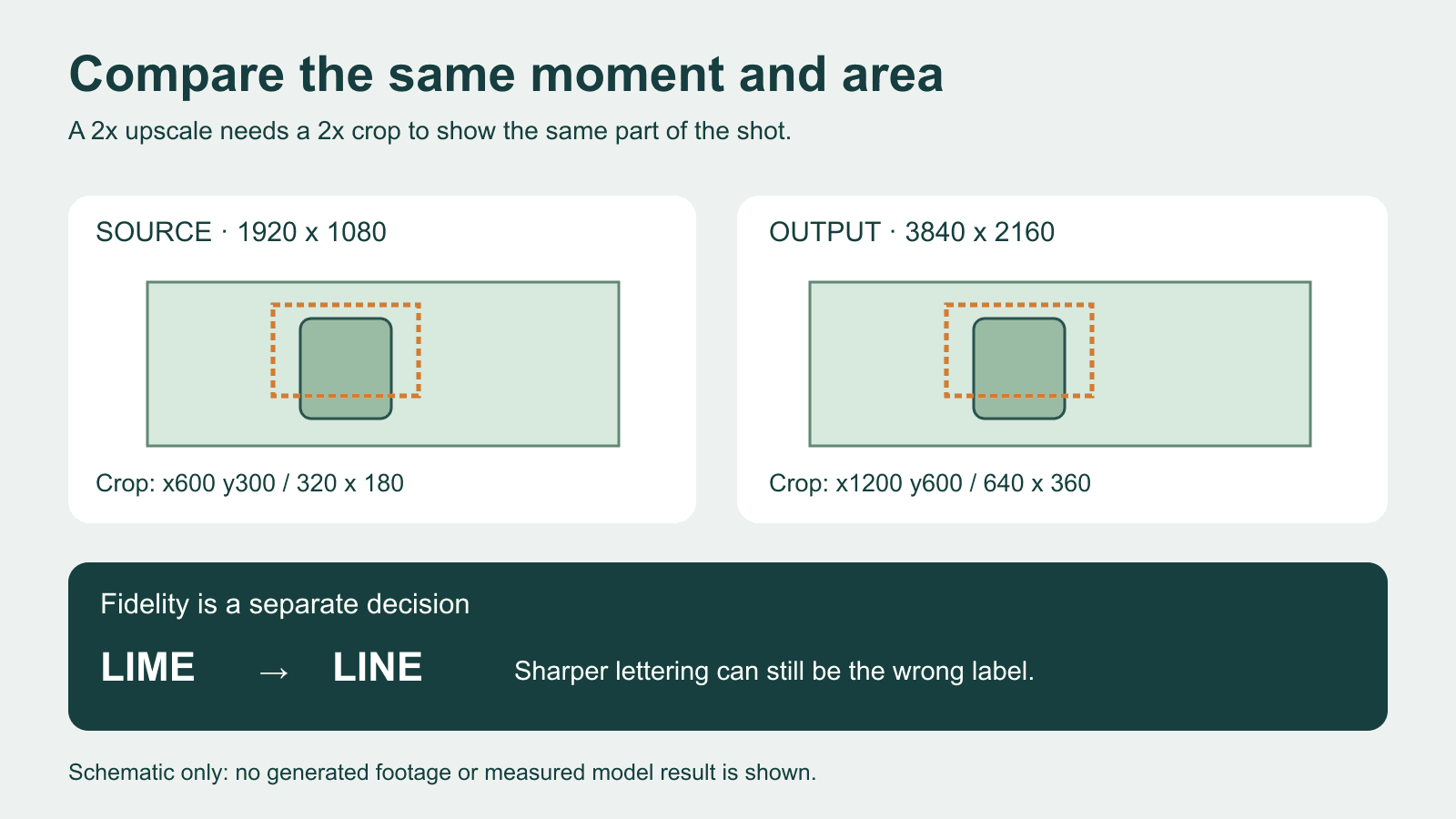
AI video upscaling: compare detail without changing the shot
Compare an AI video upscale with matching timestamps, crop coordinates and display scale. Separate sharper detail from changed lettering and motion.
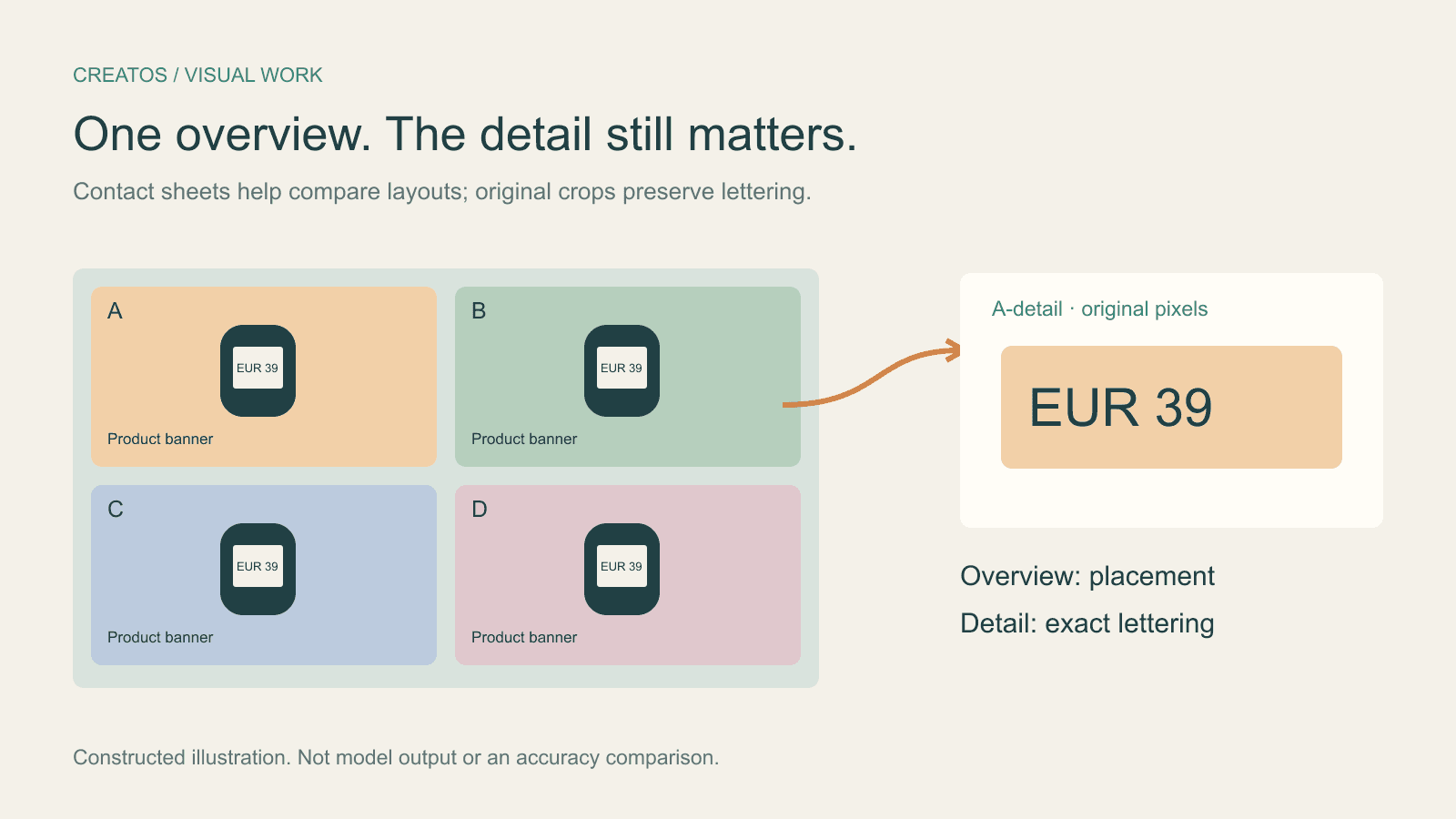
Claude image review: keep small text readable
Compare a contact sheet, separate images and detail crops using Claude image limits, with reproducible pixel and token calculations for four banner variants.