
Blender AI workflows: MCP, computer use, or Python?
Choose a Blender AI workflow by the task: scene inspection with MCP, interface work with computer use, or repeatable Python jobs. Includes output and retry checks.
Prepared with AI assistance; sources and conclusions are reviewed before publication.
On this page
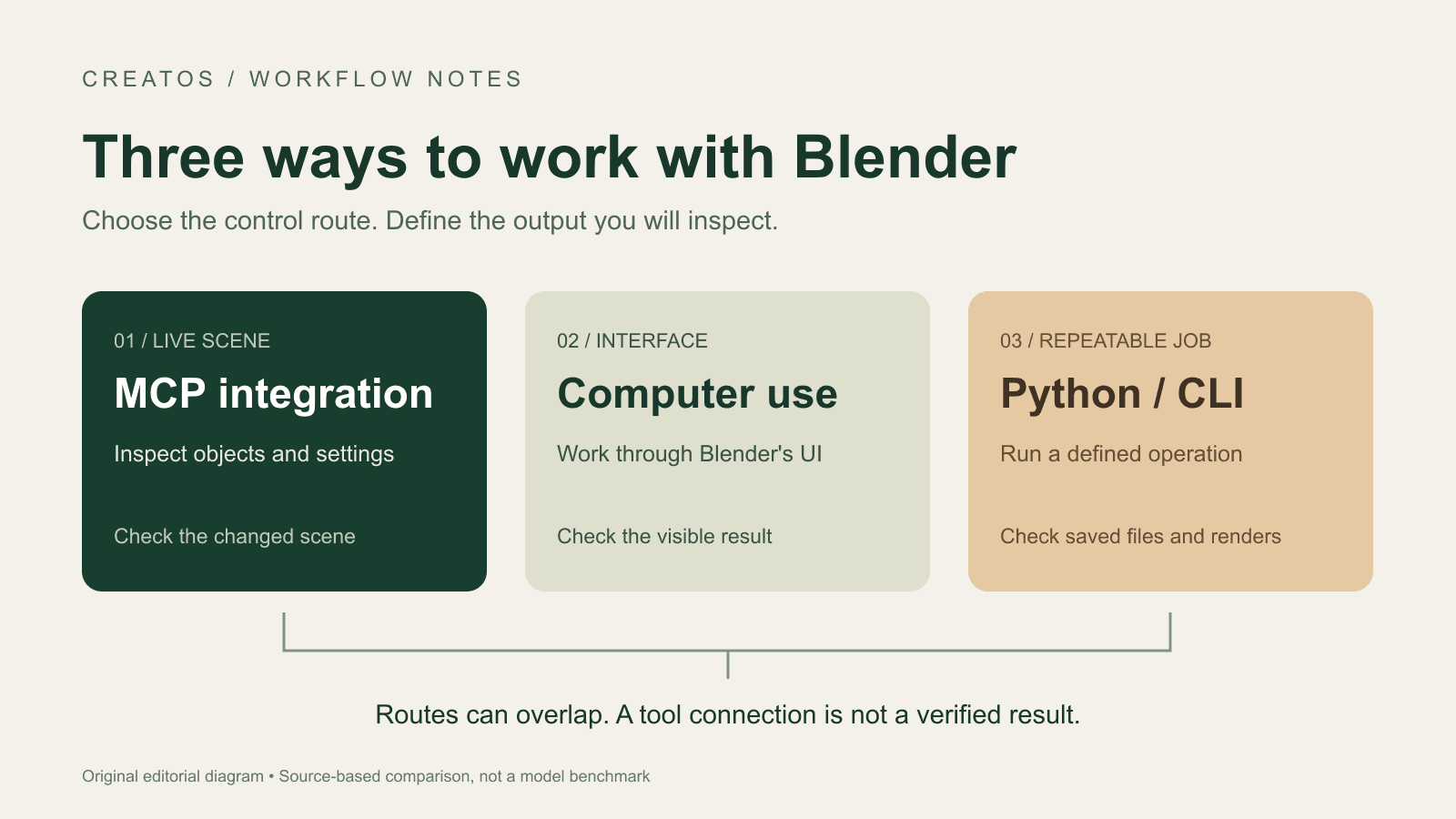
Use a Blender scene connection when an assistant needs to inspect an open project. Use a Python script for an operation you need to repeat. Use computer control when the work depends on Blender's interface. The routes can overlap: an assistant can use the interface to run a script, and an MCP server can expose Python execution.
Decide what you will inspect afterward. A render job should leave an output image and saved project. After a scene edit, check the changed objects before requesting another edit.
This is a source-based comparison, checked on September 8, 2026. It combines Blender documentation, a community integration's instructions and an attributed practitioner report. We have not benchmarked an AI model or reproduced the demonstrations discussed here.
Choose the route by the job
| What you need to do | Route to consider | What to check afterward |
|---|---|---|
| Find objects, materials or settings in an open scene | A Blender MCP integration with the relevant scene tools | Object names and properties from the actual file, followed by a visual check where appearance matters |
| Repeat a defined edit or render across saved projects | Blender Python or a background command | The saved project, expected output files and any script or render errors |
| Use a panel, adjust a UI-only workflow or inspect the visible interface | Computer use | The visible result, followed by a saved project or render rather than only the assistant's completion message |
This table is an editorial decision aid, not a speed ranking. A task may need two routes: inspect the scene through an integration, then render a saved copy from the command line.
Check which Blender MCP you mean
“Blender MCP” can refer to different projects. The official Blender Lab MCP page requires Blender 5.1 or newer and describes a separate add-on, MCP server and LLM client. The community project maintained by ahujasid lists Blender 3.0 or newer among its prerequisites. These are different integrations; their installation instructions should not be mixed.
Before following a tutorial, match its repository and add-on to the version you intend to use. A working connection also needs tools that expose the operation you want. The presence of an MCP connection alone does not tell you whether the assistant can inspect scene properties, take screenshots or execute Python.
The distinction matters when reading computer-use examples. In his March 30 account of controlling Blender, Konadu Akwasi Akuoko describes using the interface to enter and run Python. He reports that keyboard navigation worked better than precise dragging in his setup. That is one practitioner's experience; it is not a comparison of every model or Blender integration.
For your own choice, identify what the assistant will actually do: click the UI, call a scene tool or execute code. An integration's name may not make that clear.
A viewport check can miss the final render
Blender's official MCP page describes a scene-analysis example in which the assistant initially considered viewport modifiers and missed a Solidify modifier's effect on a coat's polygon count. Blender Lab's example
Specify which version of the scene you want analyzed. We suggest checking it this way:
- Name the intended camera, frame and view layer in the request.
- Ask which settings or modifiers were inspected and whether the answer concerns the viewport or render.
- Save a separate project copy and produce the intended render before accepting a claim about the final appearance.
A screenshot can help confirm composition. A saved file lets you inspect the underlying settings. Neither alone proves that every frame of an animation is correct.
For a repeatable render, make the command explicit
Blender can render without opening its interface. Its command-line documentation also makes an easily missed point: arguments execute in order. Loading a project can replace settings supplied earlier, and rendering before setting the output path uses the earlier configuration. Blender command-line rendering
For example, this command loads a saved scene, sets a PNG output path and renders frame 1:
blender --background scene.blend --render-output '//review/frame_#####' --render-format PNG --render-frame 1This is an illustrative command based on the documentation, not an executed example. It assumes Blender is available as blender in your shell, scene.blend exists and the project has valid render settings and a camera. The // path is relative to the blend file; the hashes define frame-number padding. Check the generated file before treating the job as finished.
For a custom edit, Blender also accepts --python followed by a script path. The script's contents and Blender API compatibility still need review; a valid command-line flag does not validate an AI-written script. Blender command-line arguments
If a tool times out, inspect before repeating the edit
The community integration's troubleshooting guidance recommends simplifying requests or breaking them into smaller steps when timeouts occur. Community Blender MCP troubleshooting
Our additional recommendation is to inspect the current scene before retrying a request that creates or changes objects. A timeout message does not establish that nothing changed. If an object already exists, repeating the entire creation request could leave you with duplicates.
Keep the retry narrow: identify the intended object, check whether it exists and compare its properties with the requested change. Then decide whether to continue, correct it or return to your saved copy. Ask for one verifiable change at a time when diagnosing a failure.
Both integrations can execute generated code, so use a project copy and review the access you are granting. Blender's official page explicitly warns that its integration does not guard against destructive or data-exfiltrating generated code. Blender Lab's limitations
Before starting a larger job, check that your chosen connection can inspect the relevant scene state and save the output you need. If it cannot, change the workflow before handing it more steps.
Sources
Continue reading
Browse all posts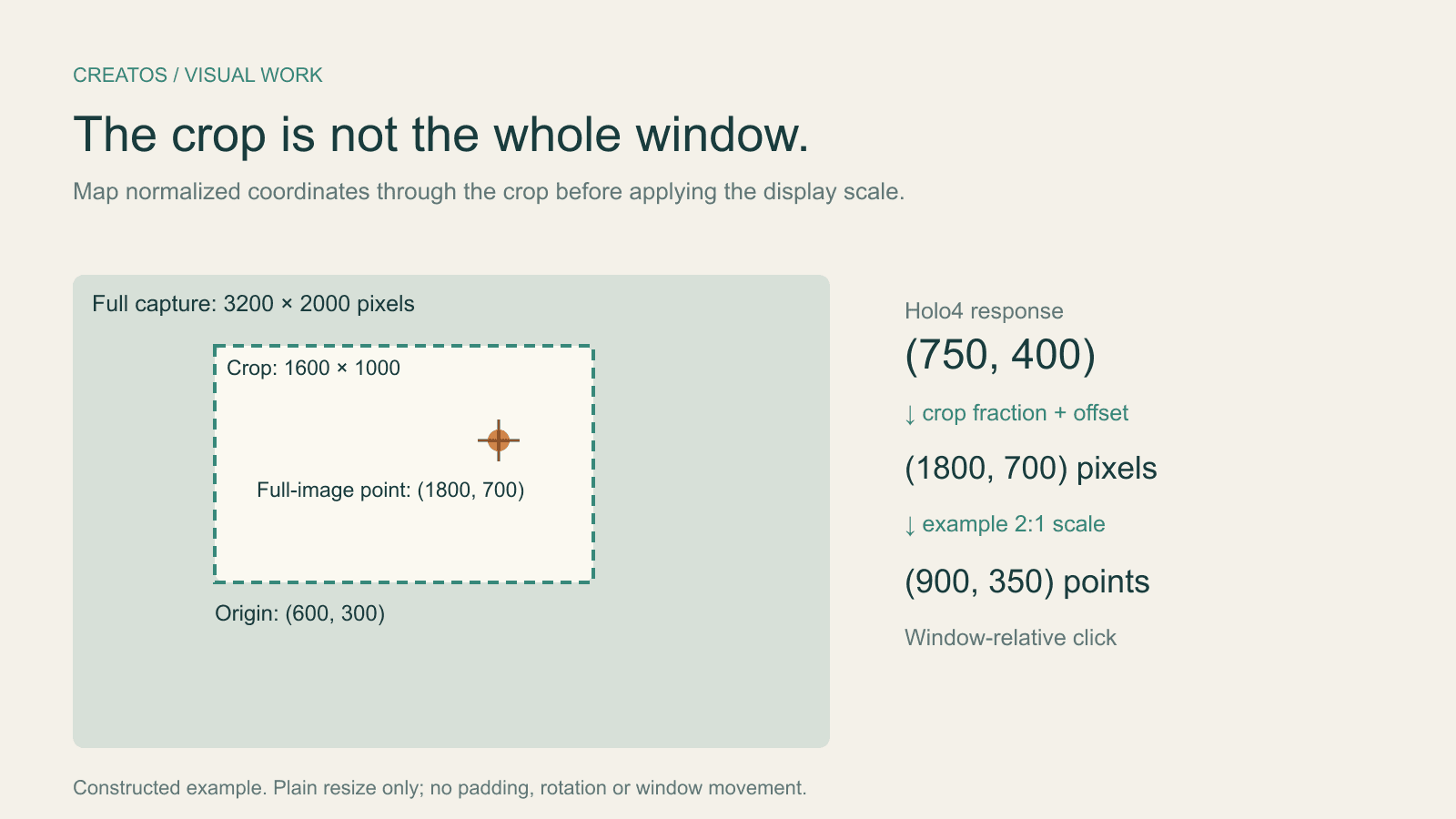
Holo4 click coordinates: fix crop and Retina offsets
Map Holo4 normalized coordinates from a cropped screenshot back to a design app. Includes a worked Retina example and locally tested Python conversion.

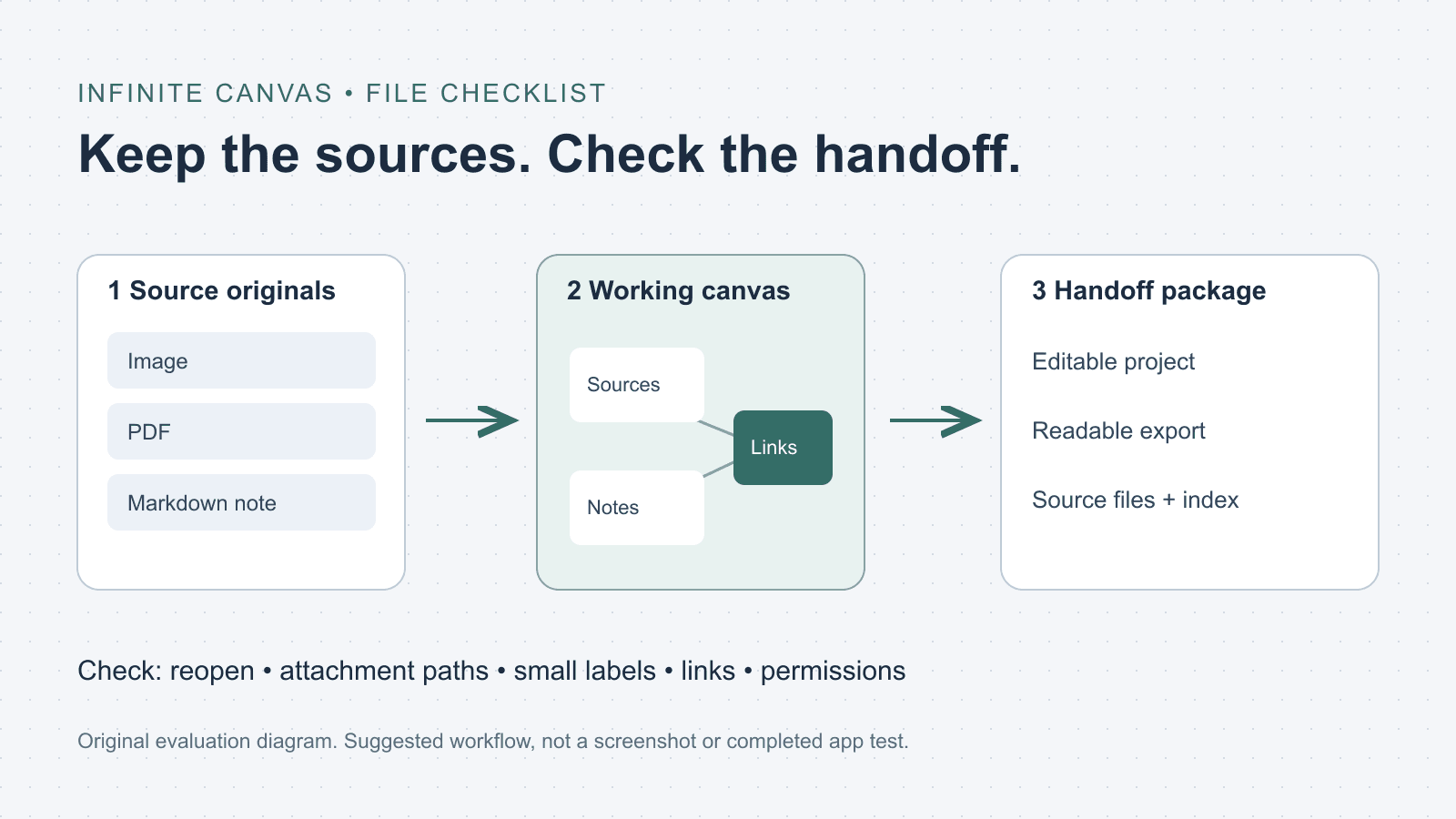
What is an infinite canvas? A file and handoff checklist
Choose an infinite canvas by checking file imports, editable projects and export limits. Includes a three-file evaluation checklist and a handoff folder template.
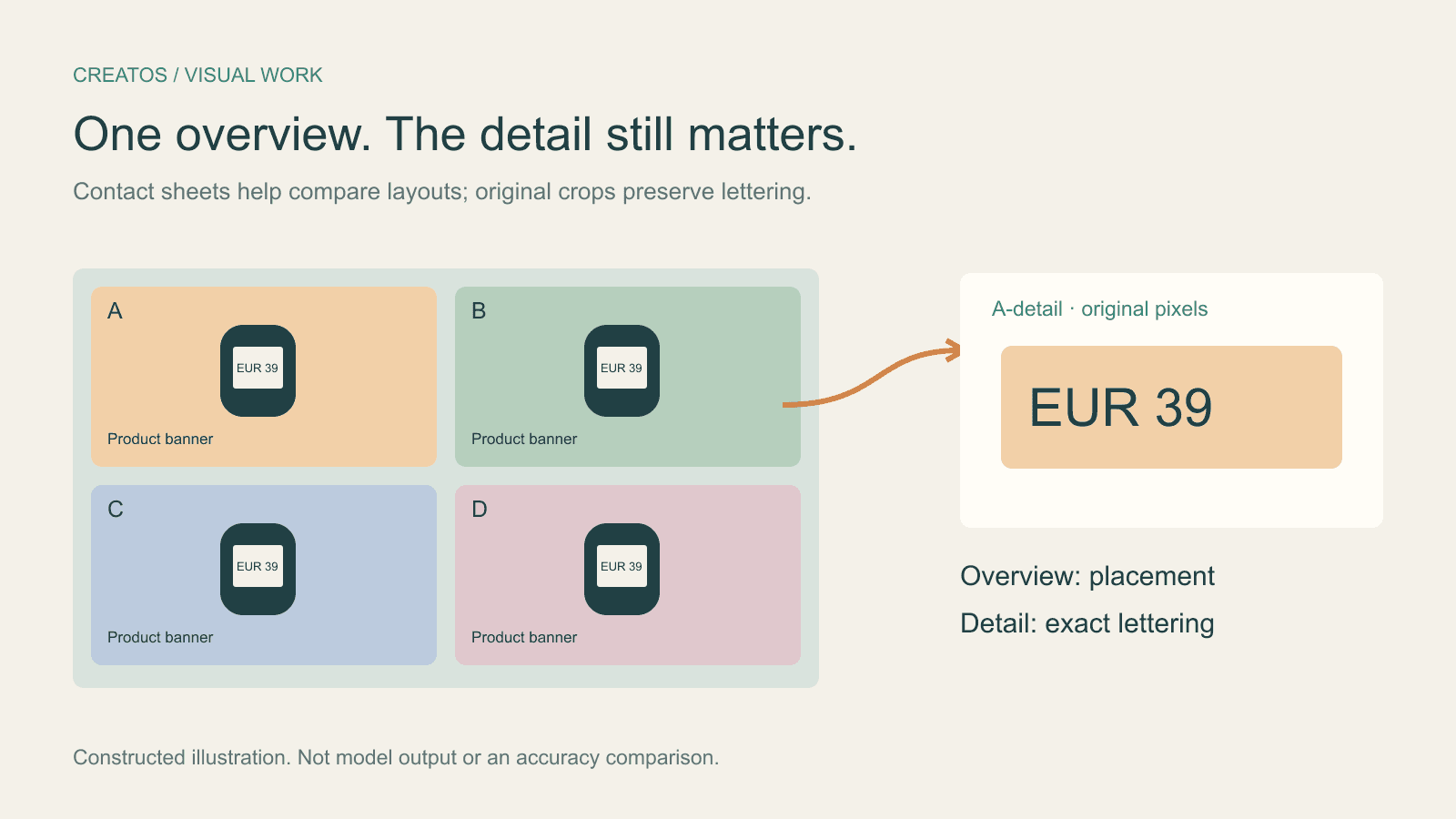
Claude image review: keep small text readable
Compare a contact sheet, separate images and detail crops using Claude image limits, with reproducible pixel and token calculations for four banner variants.